Table of Contents
- 1. Introduction
- 2. Installation and Startup
- 3. GettingStarted
- 4. Editing Data Manually
- 5. Correcting Data Automatically
- 6. Data Fields
-
- 1. Fields
-
- 1.1. Jaikoz Fields
- 1.2. File Location Fields
- 1.3. Tag Fields
-
- 1.3.1. Unique File Identifier
- 1.3.2. Artist
- 1.3.3. Album
- 1.3.4. Title
- 1.3.5. Track No
- 1.3.6. Cover Art
- 1.3.7. Genre
- 1.3.8. Recording Time
- 1.3.9. Comment
- 1.3.10. User Defined URL
- 1.3.11. User Defined Text Information
- 1.3.12. Composer
- 1.3.13. Copyright Info
- 1.3.14. Encode By
- 1.3.15. Original Artist
- 1.3.16. BPM (beats per minute)
- 1.3.17. Encoding Time
- 1.3.18. Playlist Delay
- 1.3.19. Original Release Time
- 1.3.20. Release time
- 1.3.21. Tagging Time
- 1.3.22. Lyricist
- 1.3.23. File Type
- 1.3.24. Involved People List
- 1.3.25. Group Description
- 1.3.26. Title/Songname/Content Description
- 1.3.27. Initial Key
- 1.3.28. Language(s)
- 1.3.29. Length
- 1.3.30. Musician Credits List
- 1.3.31. Media Type
- 1.3.32. Mood
- 1.3.33. Original Album/Movie/Show Title
- 1.3.34. Original Filename
- 1.3.35. Original Lyricist(s)
- 1.3.36. File Owner/Licensee
- 1.3.37. Band/Orchestra/Accompaniment
- 1.3.38. Conductor/Performer refinement
- 1.3.39. Remixed
- 1.3.40. Part of a Set
- 1.3.41. Produced Notice
- 1.3.42. Publisher
- 1.3.43. Internet Radio Station Name
- 1.3.44. Internet Radio Station Owner
- 1.3.45. Album Sort Order
- 1.3.46. Artist Sort Order
- 1.3.47. Title Sort Order
- 1.3.48. ISRC
- 1.3.49. Encoding Settings
- 1.3.50. Set Subtitle
- 1.3.51. Play Counter
- 1.3.52. URL: Commercial Information
- 1.3.53. URL: Copyright/Legal Information
- 1.3.54. URL: Official Song Web Page
- 1.3.55. URL: Official Artist Web Page
- 1.3.56. URL: Official Audio Source Web Page
- 1.3.57. URL: Official Internet Radio Web Page
- 1.3.58. URL: Payment
- 1.3.59. URL: Publishers Official Web Page
- 1.4. MPEG Fields
- 1.5. Tag Field Groups
- 2. Data Formats common to multiple Fields
- 3. Tag Compatability
- 7. Menus
-
- 1. Main Menu
-
- 1.1. File
- 1.2. Edit
- 1.3. View
- 1.4. Action
- 1.5. Action Settings
- 1.6. Settings
-
- 1.6.1. Folder Settings
- 1.6.2. Save Settings
- 1.6.3. Table Settings
- 1.6.4. Language Settings
- 1.6.5. Word Remover Settings
- 1.6.6. Word Separator Settings
- 1.6.7. Word Replacer Settings
- 1.6.8. Punctuation Remover Settings
- 1.6.9. External Application Settings
- 1.6.10. Default Browser Settings
- 1.6.11. Look And Feel Settings
- 1.7. Help
- 2. Popup Menu
List of Tables
- 3.1. General Keyboard Actions
- 3.2. Main Menu Actions
- 3.3. Table Keyboard Actions
- 3.4. Shortcut keys for Main Menu
- 3.5. Shortcut keys for Row Header
- 5.1. Formatting Mask
- 5.2. Formatting Mask
- 6.1. Not Supported Fields
- 6.2. ID3v1.0 Fields
Table of Contents

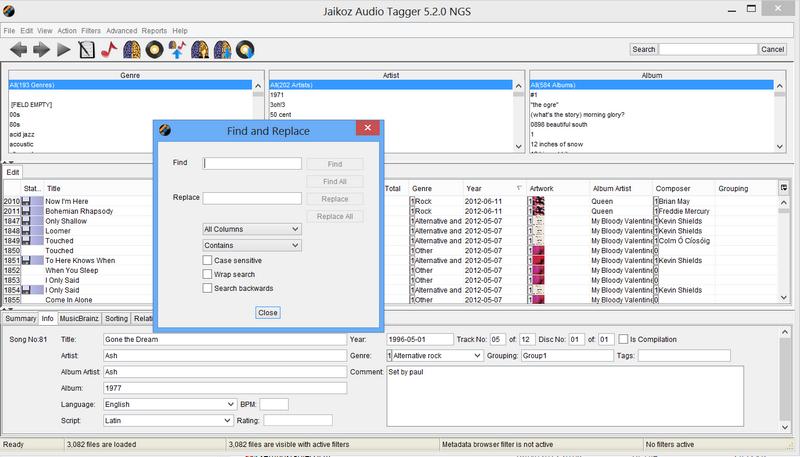
Everybody is using MP3s these day. These can be created from CD or downloaded off the Internet, however often these do not contain the correct information to identify and playback the song, problems include missing album names and misspelled titles, and different spellings for the same artis, information such as artist, album, title and track numbers is known as metadata, and it is stored within your mp3s in a tag. Correcting these mistakes by hand is time consuming and inaccurate
Jaikoz has been designed for managing large music collections, it can load 10,000 records at a time without a problem. Jaikoz uses an online database of information on more than 5 million songs, this database is called MusicBrainz. This is a community based database with contributions by over 200,000 people, a system of moderation ensures the data is extremely accurate. Additionally many of these songs have associated Acoustic Ids provided by MusicIP, allowing a song to be identified by the actual music, so it do a match even if you have no metadata ! Jaikoz allows to lookup your songs by both the acoustic id and the metadata making it very accurate, nothing has to be done by you so you can go away and do something else more interesting. Jaikoz provides easy access to look up your matching Song on MusicBrainz using your default web browser.
But no system is 100% accurate so we have made it as quick and easy as possible to edit your data manually as well. Jaikoz uses a spreadsheet view to allow you to edit information much quicker than other applications and provides many autoformatting tasks which do most of the work for you. For example it compares your MP3s to each other and using this information it can correct missing information and spelling mistakes, we know of no other tagger that does this ! Jaikoz can extract information from a filename into the tag without you having to specify the format for the filename. Some applications hide multi-complex fields away but Jaikoz allows you to access the first field of every one from the main view. For example if you have an album cover tag in one mp3 and you want to copy it to other mp3s just copy and paste it. Jaikoz provides access to many more fields than just the popular ones like artist and album, in fact you can modify ninety fields such Official Artist Web Page or ISRC code and Play Counter. Jaikoz also provides a split screen view letting you view the the original file(s) and the changes you have made at the same time
Jaikoz transparently supports tagging of MP3 files with ID3v1,ID3v2,ID3v2.2,ID3v2.3 and ID3v2.4 tags, and allows easy conversion between them. Many Music Players only support certain tag versions and this often a cause of confusion for users
Jaikoz is written in Java this means you can use it on Windows, UNIX and,Mac OS X, and it woreks the same way on each.
-
Acoustic matching using MusicBrainz and MusicIP to match tracks based on the actual music
-
MetaData matching using MusicBrainz to match tracks from the metadata in your files
-
Rename your files and folders based on your tag metadata
-
Intelligent FileName to Tagger can extract information from the filename into the tag without having to know the format of the field
-
Intelligent AutoMatch compares different Audio files and finds field matches and then allows all similar fields to be formatted the same.
-
Intelligent AutoFormat provides automatic capitalization, conversion of special words and removal of invalid and punctuation characters.
-
Designed to allow tagging of large number of audio files
-
The innovative spreadsheet view allows easy editing of all fields.
-
Provides full support of all text fields and partial support of all other fields
-
Automatically keeps v1 and v2 tags synchronised
-
Split screen view allows you to view the data before and after modifications at same time,view are automatically synchronised with each other.
-
Full Unicode support allow any character from any language to be used
-
Easy conversion of tags between version.
-
Displays what is actually contained in the tag allowing the user full control
Table of Contents
This section explains platform requirements and installation procedures. It also provides instructions on how to obtain and apply a Jaikoz license, how to perform upgrades and uninstall Jaikoz if required.
The Minimum run-time requirements are a Computer with 256MB of RAM and 10MB free disk space
-
To use Jaikoz you must have the Java Runtime Environment (JRE) installed version 1.5 or later.
-
Download the Jaikoz.bin file from the Website
-
Open a XTerminal Window and login as root
-
Run ./Jaikoz.bin and follow the instructions
-
Creating shortcuts in the default /usr/bin location will make Jaikoz available to all users
-
Installation is now complete
-
You may want create shortcuts on the defaults user desktop, to do this create a launcher for Jaikoz (Default location /opt/jaikoz/Jaikoz
You can start Jaikoz using /usr/bin/Jaikoz. Alternatively you can start Jaikoz with /usr/bin/jaikoz.sh
You can create links on your desktop for both these programs
If everything is ok there will be a short delay whilst Jaikoz initialises and then it should start. If you have not yet installed your license, you will see this dialog

Select Path to Open a File Dialog and find the license file that you should have recieved by email (license.jai) and select Open. Then select OK to verify the license.
If the license is verified Jaikoz will start
This section discusses problems starting Jaikoz due to problems with your Java configuration
bash: java: No such file or directory.
There is a problem with your JRE Installation. Please ensure that Java is installed and can be found in your path
Unable to load helpset
There is a problem with your JRE Installation. Please ensure that Java is installed and can be found in your path
If you start Jaikoz and it cannot find your license you will see this dialog
Select Path to Open a File Dialog and find the license file that you should have recieved by email (license.jai) and select Open. Then select OK to verify the license.
If the license is verified Jaikoz will start
If you start Jaikoz and your trial license has expired you will see this dialog

The trial license is supplied at no cost for a period of 30 days from date of issue. Thereafter, the application is disabled and a permanent license must be purchased in order to use the application.
If you wish to purchase a license go to the Website and purchase, then install in the usual way
Select Path to Open a File Dialog and find the license file that you should have recieved by email (license.jai) and select Open. Then select OK to verify the license.
If the license is verified Jaikoz will start
If you start Jaikoz and there is a problem with your license you will see this dialog

Your license has been corrupted,retrieve the original license and reinstall it in the usual way
Select Path to Open a File Dialog and find the license file that you should have recieved by email (license.jai) and select Open. Then select OK to verify the license.
If the license is verified Jaikoz will start
Run the uninstall provided program with your OS. If you wish to completely remove the application folder and any work saved in it, you will have to delete this folder manually.
Warning this section is for experienced users of Java only
The following parameters effect Jaikozes memory usage
-Xms64m -Xmx256m
The -Xms64m parameter specifies how much memory in megabytes (64) to allocate for storing data (such as the Audio Files Tagging Information) when you start Jaikoz, the -Xmx256 (256 megabytes) parameter sets the maximum memory allowed to be allocated.
If you are attempting to load many audio files (more than 10000) you may get a warning that memory is low, by increasing the value of -Xms you will be able to load larger amount of files if you require it. However trying to load too many files may place too high a CPU load on your computer could severely effect performance.
If you are using Jaikoz.bin you need to modify the value of lax.nl.java.option.java.heap.size.max in Jaikoz.lax, if you are using Jaikoz.sh , edit the shell script directly.
Table of Contents
Select the File/Open Folder Menu Item to select files to load in Jaikoz, by default subfolders will also be loaded.Your files will start to load into Jaikoz. If Jaikoz estimates it will take a while an indication will be given of how many files it expects to load, you can halt the file loading by selecting Cancel.
Select the AutoCorrect button (the large green tick), this will perform a number of local corrections such as removing whitespace and correcting capitalization. This is very quick and will improve the accuracy of a subsequent MusicBrainz match
Then create acoustic ids for your files. Select the MusicIP Button to get Jaikoz to create an Acoustic id for each track which can be used to match the track. This step takes significantly longer ( about 5 seconds per track), however the created acoustic is saved with your track and never needs to be recalculated again. You can skip this step if you like but matches will be less accurate.
Now find a match using the online MusicBrainz database. Select the Correct from MusicBrainz button (left arrow) to get Jaikoz to look up the tracks from the database. If you previously created an acoustic id this will be matched first, and then if there is no match your tracks metadata will be used, if no acoustic id was created only your metadata will be matched, matches take about a second per track.
Once it has completed you can check the results and make any manual changes by editing the data directly
When you are happy with the result select the File/Save Changes Menu to save your files.
Additionally you can select the Submit to MusicBrainz button (right arrow) to submit records where a match as been made between an Acoustic Id and a MusicBrainz Unique id. By doing this you help to make MusicBrainz even more accurate and comprehensive. But you should only do this if you are happy that the match is correct, and you shouldnt do this for the same track moree than once.
In the example above the tasks were performed on all files, but you can also select rows in the row header, and using the popup run any task on only the selected rows
This section explains the Main Jaikoz Window, and the visible components of Jaikoz.
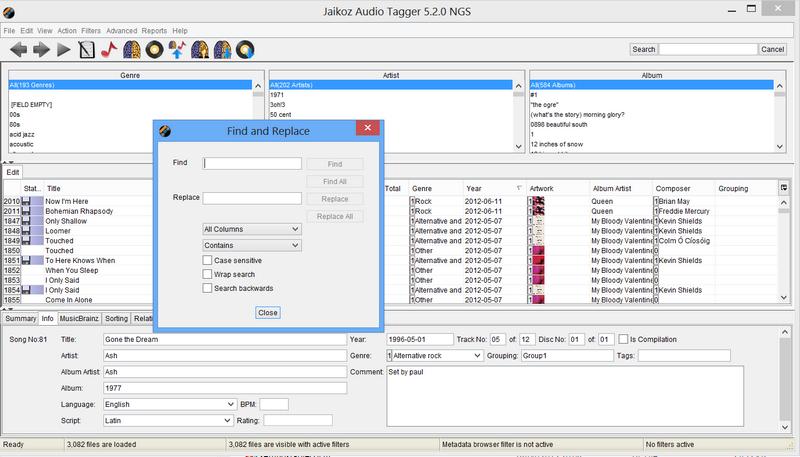
This section explains the terminology used within Jaikoz and the main components of Jaikoz
-
MP3 is a audio format, which compresses music files to a small size making them suitable for storing on a computer.
-
Metadata is the termfor any information about a music file other then the music file itself.
-
ID3v1 is the original format which is very basic but supports many applications . It comes in two flavours ID3v1.0 and ID3v1.1.
-
ID3v2 is a newer more advanced format which allows over 100 different types of information to be stored. It comes in three versions ID3v2.2,ID3v2.3 and ID3v2.4. ID3v2 is not supported by all applications and some applications only support a particular version.
-
Unicode is a way of specifying characters, it supports almost every language in the world.
-
Popup Window is a new window seperate to the main application window
-
By default Jaikoz shows an Edit Panel and a Console Panel but you can also show a View Panel by selecting the View/Show View Pane menu item. Then the screen is split horizontally between the View and Edit Panels, you can adjust the proportion of the sceen taken up by each Panel by adjusting the separator up and down. The View and Edit Panels contain tabs
-
You can view the contents of a tab using the vertical and horizontal scroll bars
-
Each tab consists of a table which holds audio information.
-
Fields store the data within a column and refers to particular information such as Artist or Album
-
Values are what are stored by a field such as the 'Artist' field may contain the value 'The MisVitals'. Some fields can have multiple values for example the Genre field may contain two values such as 'Rock' and 'Pop'
-
Attributes make up parts of the value. Most values have only one attribute, but some values have multiple attributes, for example an attached picture has the image itself, an image name and an image type
The View Panel displays tagging information as it currently exists in the saved file
-
The Merged Tab merges the v1 and V2 tags. If a V2 field exists (and is not empty) it is displayed, if it is empty or does not exist and there is an equivalent v1 tag this value will be displayed. If it not contain either fields it will be shown as missing.
-
The V2 Tab contains the contents of the ID3v2 tag, if a file contains more than one ID3v2 tag the latest one will be displayed
-
The MPEG Tab contains MP3 specific information about the music file
The Edit Panel contains a single tab the Edit Tab . Because the Edit Panel only contains the one Edit Tab we use the terms interchangably in this help document. This starts with the same information as the Merged Tab, but it is here you can edit the tag information
-
Selectable Combo is a drop down list where you can select a value
-
Editable Combo is a drop down list where you can select a value or enter a value not in the list
-
Multi Field Count Fields which support multi value fields have a row count specifying how may values a field contains, clicking on the multifield count will show up a PopupWindow showing all the values held in a field.
The Console Panel summarizes tasks you have done, plus any problems encountered. Everything written to the Console Panel, also gets written to the User Log, and everything will always be written to the User Log even if the Console Panel is not displayed.
The user log is stored in your installation folder, the latest log is called jaikozuser-0-0.log, as it get larger it will be renamed jaikozuser0-1.log, and an empty jaikozuser0-0.log will be created. There is also a jaikozdebug-0-0.log that contains additional information useful to us if you have a support query with Jaikoz.
Jaikoz has been designed to allow you to do your editing as quickly and easily as possible. Is it particulary good if you have a large music collection and have ever used other tagger then you will find time spent using Jaikoz well spent.
-
PopWindows have been limited. Popup Windows are slow and cumbersome,Jaikoz allows you to edit 99% of the time directly within the Edit panel, popups are only used for editing multiple values for a field.
-
Generous type checking. Jaikoz does not impose unnecessary restrictions on your editing
-
Intelligent AutoFixing if you enter an invalid value Jaikoz tries to convert the value to an allowable value, if it cannot the value is left unchanged. This is much more user firendly then bringing up popup window errors
-
Keyboard and Mouse traversal are provided with many short cut keys available to perform common tasks.
If you click on a column you can sort it in ascending order, click on it again and it will be sorted in descending order. if you click on the Row Number column the records will be sorted by row number this will be the same order as when they were originally loaded into Jaikoz
The size of a column can be increased or decreased by selecting the right hand side of the column and dragging it inwards or outwards
Jaikoz automatically synchronises the View Panel and the Edit Panel. For example if you scroll the EditPanel to the right-hand-side, the currently displayed view tab will also be scrolled to the right-hand-side.This is a very powerful feature but you can disable it if you wish, it is also quite computationally intensive
-
Synchronise row sorting between rows When rows are sorted in one view they will be sorted in all other views
-
Synchronise column sorting between rows When the column order is changed in one view they will be changed in other views
-
Synchronise column resizing between rows When the column order is resized in one view they will be resized in other views
-
Synchronise horizontal scrolling between rows When scrolling through the columns in one view they will be scrolled in other views
-
Synchronise vertical scrolling between rows When scrolling through the rows in one view they will be scrolled in other views
The keyboard can be used to perform most functions
Table 3.1. General Keyboard Actions
| Key | Task |
|---|---|
| Tab | Move to next field,button,table.. |
| Shift+Tab | Move to previous field,button,table... |
| Cntrl+Tab | Move to next field,button when inside a table |
| Alt | Go to Main Menu |
| Spacebar | Select/Deselect checkbox or radio button |
Table 3.2. Main Menu Actions
| Key | Task |
|---|---|
| Alt | Go to Main Menu |
| Right Arrow | Go to next Menu |
| Left Arrow | Go to previous Menu |
| Up Arrow | Scroll down Menu items in Menu |
| Down Arrow | Scroll up Menu items in Menu |
| Enter | Run selected Menu item |
| Esc | Close Main Menu |
Table 3.3. Table Keyboard Actions
| Key | Task |
|---|---|
| Esc | Return field prior to editing |
| Enter | Start Editing current field |
| Cntrl+C | Copy information in selected field into clipboard |
| Cntrl+V | Paste first value from clipboard into selected field(s) |
| Shift+V | Paste all value from clipboard into selected field(s) |
| Cntrl+D | Delete selected field |
| Cntrl+J | For multiple value fields open the associated Popup Window |
| Tab | Move to next field |
| Right Arrow | Move to next field |
| Shift+Tab | Move to previous field |
| Left Arrow | Move to previous field |
| Home | Move to first field in row |
| End | Move to last field in row |
| Cntrl+Home | Move to first field in table |
| Cntrl+End | Move to last field in table |
| Cntrl+A | Select all fields in table |
| Shift+Up/Down | Extend selection one row |
Table 3.4. Shortcut keys for Main Menu
| Key | Task |
|---|---|
| F1 | Auto Correct |
| F2 | AutoCorrect the Artist Column |
| F3 | AutoCorrect the Album Column |
| F4 | AutoCorrect the Title Column |
| F5 | AutoCorrec the Genre Column |
| F6 | AutoCorrect theTrack No Column |
| F7 | AutoCorrect the Comments Column |
| F8 | AutoCorrect the Recording Time Column |
| F9 | AutoCorrect the SubFolder from Tag |
| F10 | AutoCorrect the Filename from Tag |
| F11 | AutoCorrect Tags from Filename |
| Cntrl+F1 | AutoCorrecter Settings |
| Cntrl+F2 | Artist Autocorrect Settings |
| Cntrl+F3 | Album Autocorrect Settings |
| Cntrl+F4 | Title Autocorrect Settings |
| Cntrl+F5 | Genre Autocorrect Settings |
| Cntrl+F6 | Track No Autocorrect Settings |
| Cntrl+F7 | Comments Autocorrect Settings |
| Cntrl+F8 | Recording Time Autocorrect Settings |
| Cntrl+F9 | Sub Folder Autocorrect Settings |
| Cntrl+F10 | Filename Autocorrect Settings |
| Cntrl+F11 | Tags from filename Settings |
Table 3.5. Shortcut keys for Row Header
| Key | Task |
|---|---|
| Alt+F1 | Auto Correct selected rows |
| Alt+F2 | AutoCorrect the Artist Column for selected rows |
| Alt+F3 | AutoCorrect the Album Column for selected rows |
| Alt+F4 | AutoCorrect the Title Column for selected rows |
| Alt+F5 | AutoCorrec the Genre Column for selected rows |
| Alt+F6 | AutoCorrect theTrack No Column for selected rows |
| Alt+F7 | AutoCorrect the Comments Column for selected rows |
| Alt+F8 | AutoCorrect the Recording Time Column for selected rows |
| Alt+F9 | AutoCorrect the SubFolder from Tag for selected rows |
| Alt+F10 | AutoCorrect the Filename from Tag for selected rows |
| Alt+F11 | AutoCorrect Tags from Filename for selected rows |
| Alt+F12 | Delete selected rows |
| Cntrl+F12 | UnDelete selected rows |
| Alt+P | Pass selected rows to External App |
| Alt+S | Save changes to selected rows |
Table of Contents
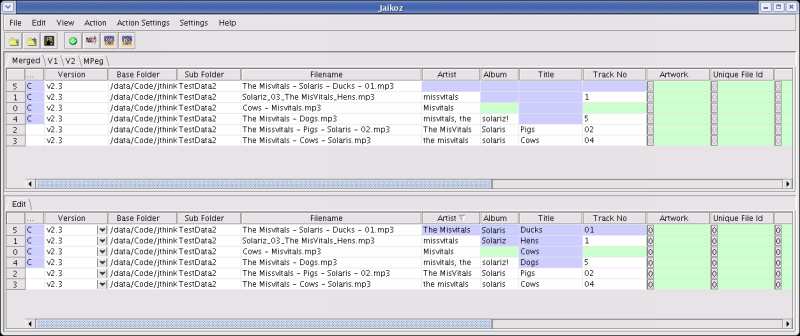
Fields are displayed in a view akin to a spreadsheet. If a field does not exist its background will be coloured the Missing Colour . If it does exist then it then the background will be white. If there is any whitespace at the start or the end of the value it will be coloured the Whitespace Colour. This is very useful for identifying white space at the end of a field,if you have ever wondered why two field that appear to have the same value are not listed together in an Audio Player it is probably because one contains white space or undisplayable characters. If the field exists but is empty then the whole field will just be white.
Within the Edit Panel you can edit a value by simply clicking on it and entering the new information. After leaving the field it will perform Auto Fixing if necessary, if the value is invalid it will revert back to original value.Once you edit a field its colour will change to Change Colour, if you change it back to its original value it will no longer be changed colour.Most fields are simple text fields but some provide a Selectable Combo or an Editable Combo providing a list of valid values. Some fields allow multiple values in this case Multi Field Count will display showing the current number of records, double clicking on this will open a Popup Window to allow you to add additional values. Some of these fields have multiple parts that can also be edited here.
Displaying the View panel is useful to allow you to compare modified values with the original values, no changes will actually be made to the file until you select 'Save Changes'
Jaikoz supports the full Unicode character set, this means you can enter text in any language you wish. Whether you can do this directly from your keyboard depend on your keyboard settings and your operating system type and settings. If you cannot enter a character directly you can use the Unicode notation using the form /uXXXX,once you have finished editing the field it will display the value as a character. The full Unicode specification can be found here

After exiting the field Jaikoz will show its displayed value

Fields from a single column can be copied from any of the tabs and pasted into one or more fields in the Edit Panel if all the fields to be pasted to accept the copied fields as valid
Select field(s) to copy
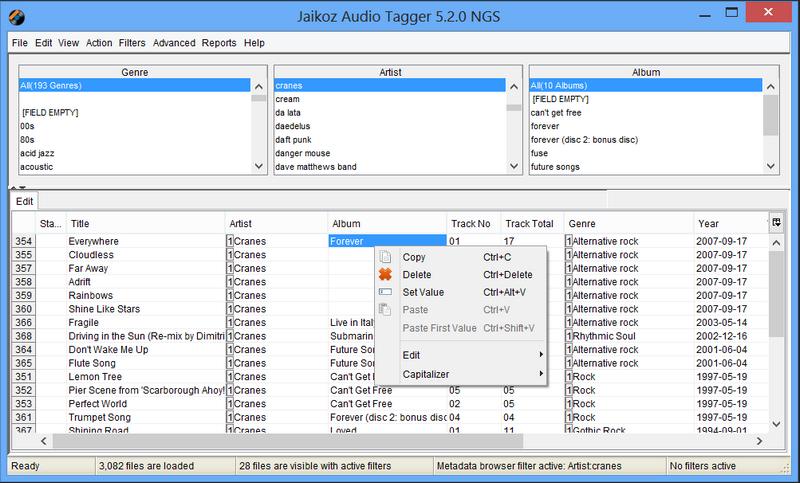
Select fields to paste into
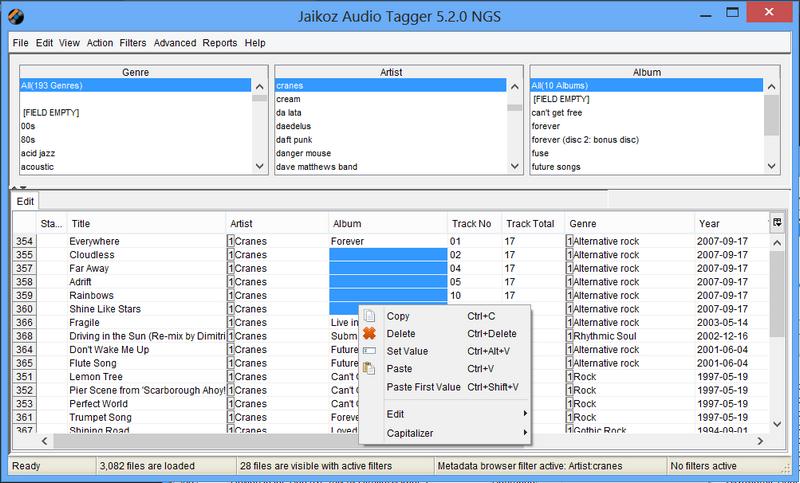
Thats it!
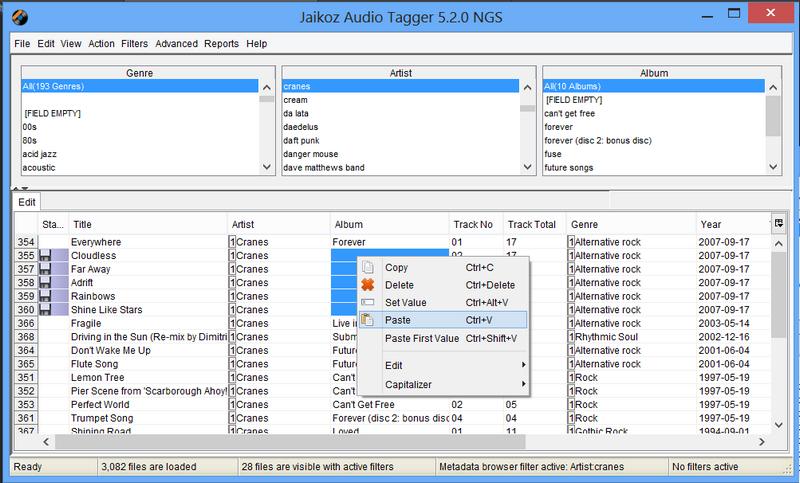
You can only select a fields froma single column to be copied at any time, if you select fields from more than one column the copy will not take place.
Select some fields to paste into and select Paste provided all fields accept the copied value the paste will take place.If the field to be copied has multiple values only the first value will be pasted to the paste fields. If the paste area is larger than the copy area, the copied fields will be cycled through again to populate the required paste area. For example you can copy data from the Artist field to the Album field but not to an Attached Picture field because it wouldnt make any sense. In some cases the data is automatically formatted so it is valid for the pasted field, this is known as Auto Fixing. For example if you paste a value from an Artist field to the Filename field it appends the (MP3) suffix to the filename and checks that you have not already loaded a file with the same filename.
You can delete a field, this is different to setting the field to empty, the field will no longer exist in the Audio File after saving changes
You can delete the whole Audio Record. You are most likely to do this if you find you have duplicate files of the same recording.
Jaikoz checks any data you have entered to check it is valid, if it is not valid it will try to fix it, if it can not it will revert it back to its original value. This is known as AutoFixing, at first it may seem confusing that the value displayed in the field after editing is different to the value you entered but it cuts down on annoying warning and error messages that you get with most applications
Table of Contents
Auto Correction allows your metadata to be corrected without you manually editing the changes. This is a much quicker and more accurate way of sorting out your music. Jaikoz can perform 'Local Correct' which does not require Internet Access, and is very quick but can only work with the metadata that you already have in your files. Jaikoz can do 'Musicbrainz/MusicIP Correct' which uses the MusicBrainz/MusicIP database to perform matches, this is much more accurate but takes longer. 'File and Folder Correct' is another form of Local Correct that modifies your folder and filenames, rather than just your metadata. The 'Autocorrecter' allows you to batch up a number of these tasks into a single task. Usually you would use all these methods to clean up your Music library
MusicBrainz is an online database of information on more than 5 million songs. This is a community based database with contributions by over 200,000 people, a system of moderation ensures the data is extremely accurate. Additionally many of these songs have associated Acoustic Ids provided by MusicIP, allowing a song to be identified by the actual music, so it can do a match even if you have no metadata. MusicIP also provides an online database and a number of Music Mixing and Music Identification services. This is the very latest technology and is much more powerful than other systems that only allow a match by metadata, or only match album by album instead of uniquely per track.
Jaikoz allows to lookup your songs by both the acoustic id and the metadata making it very accurate, nothing has to be done by you so you can go away and do something else more interesting Jaikoz can calculate acoustic ids for most audio tracks and then contact the MusicBrainz Server to find matching tracks and meta-data. Sometimes multiple tracks may be returned but unlike other systems Jaikoz can use its its AutoMatch algorithm to determine which is the correct match in most cases. It does this by comparing the meta-data in the records returned from MusicBrainz with the record it is trying to match. As a user this means you can run Jaikoz against MusicBrainz and the corrections will be done without any additional intervention required from yourself. This is very useful because the creation of Acoustic ids and lookup in the MusicBrainz Database can take a while if you want to correct may files so is best run unattended for a large number of files. If a match is found Jaikoz will always write a record to the Unique File identifier which provides a link back to the Music Brainz Website , it also writes records to the User Defined Text Information identifying the Acoustic Id (Puid), Artist Id, Album Id and AmazonId if available. The artist,album,title,time and track number will also be added if they do not exist, or if they are allowed to be overwritten based on your AutoMatch Settings.
The MusicBrainz Server field specifies what MusicBrainz server to use, currently there is only one but it is expected there will be mirror servers available in the future.
The When matching tracks from MusicBrainz using only metadata only match tracks with a rating field allows you to balance the number of matches against accuracy. If your track has no acoustic id the match is done purely on the metadata, the higher this setting the more likely it is that any match made will be correct, but less tracks will get matched at all. If your track has an acoustic id this setting is ignored because acoustic ids are so accurate it is very likely that if an acoustic match is made it will be for the correct track (even if it is not for the exact version), and forcing a check on metadata as well would throw away accurate matches for tracks with poor or incorrect metadata. The default value is 70.
The Number of Simultaneous matches field can be adjusted to improve performance. Because the match is done over the Internet there is a delay between Jaikoz sending a match request and receiving an answer back from MusicBrainz. If this value is set to one then Jaikoz will just wait for the answer back before sending another match request but if you increase the value Jaikoz will send additional requests whilst waiting for answers, but if you set the value too high for your processor you can actualy slow down processing. Simply put if you have a very fast computer you can increase this value from the default of eight, if you have not you should leave it as it is.
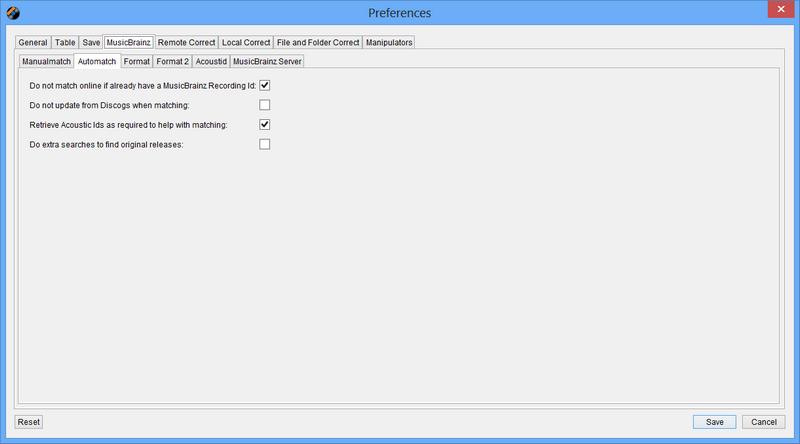
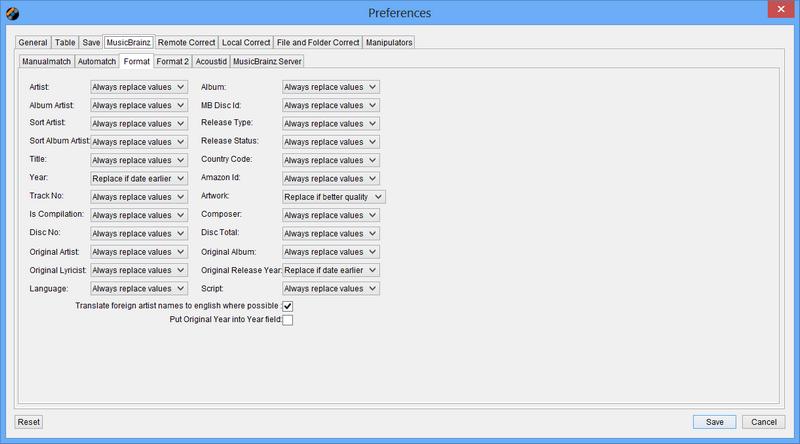
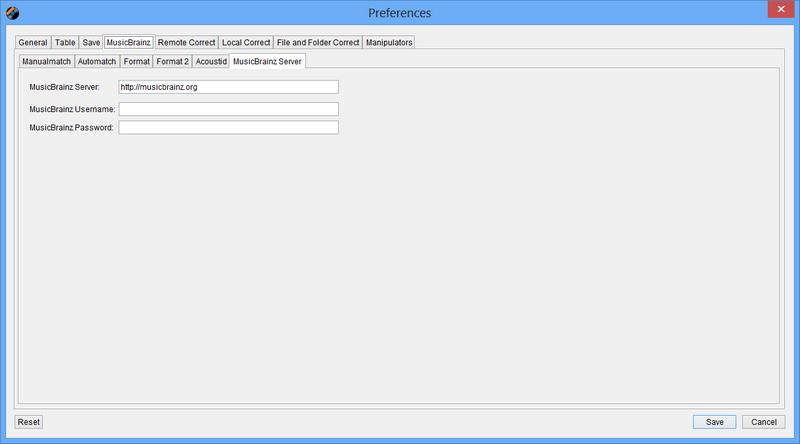
If you successfully create an acoustic Id (MusicIP Puid) for a track and you have successfully found a match on MusicBrainz, and your track has a Music Brainz Unique File Id, you can submit the pairing to MusicBrainz the database, by doing this you contribute to the MusicBrainz Project and improve the quality of their metadata. In order to submit data to MusicBrainz you need to have a user account, these are completely free and can be created at the MusicBrainz Website. If you have a user account specify your username and password in this tab in the MusicBrainz Username and MusicBrainz password fields. You should only submit a pairing if you have confirmed that the pairing has been correctly and identified and you should not submit the same paring more than once.
If you have a number of Audio Files that you wish to adjust the data for the chances are at least some of them are by the same Artist and from the same Album. However if the source for these files are different the metadata may be subtletly different,this means that when you try and play all tracks by a particular group or artist they do not all appear. For example the following artists are all different,but only slightly
-
Flatuella Blurb - All words start with a capital letter
-
Flatuella blurb- First words start with a capital letter
-
The Flatuella Blurb - Additional definite article
-
Blurb Flatuella - Words in different order
-
Flatuella Blorb - Misspelling of second word
-
Flatuella Blurb - Extra white space character at end of word
-
Flatuella_Blurb - Words separated by underscore character
-
Flatuella Blurbs - Extra punctuation
Which is the correct answer?
Item five is a misspelling so it is not this,item four is not that easy to read but is the accepted format for some MP3 encoders, any of the others could conceivably be ok. The correct answer really depends upon your personal preference. AutoFormat allows you to automatically modify values to to your personal taste.Are all these artists the same band, as a human reading this document it should be obvious that they are but to a computer it is not. But AutoMatch can detect these similar values, again the similarity is defined by you.
Local correction trys to work out which is the correct value to use by a combination of comparing similar values, and user options. Local Correct is available for the following fields
-
Artist
-
Album
-
Title
-
Genre
-
Track No
-
Recording Time
-
Comments
-
Composer
AutoCorrection works on a column by column basis,it identifies similar values and converts all similar values to the most common value. The procedure is as follows
-
Create an empty new list
-
For each record retrieve the Field Value relating to that column
-
Using the options defined in AutoMatch Settings calculate a Match Value
-
Using the options defined in AutoFormat Settings calculate a Format Value
-
Has this field been found before, if not add it to the list with Count of zero
-
If it has just increment the Count of this field in the list
-
Sort the list by their Match Value and then Count,highest count first.
-
If a record has the same Match Value as its preceding record set its Format Value to the same as the previous records Format Value.
-
Go through each Audio File record and find the record in the list with the same Field Value and set the name in the Audio record to the Format Value.
You can decide on what the AutoCorrecter deems is similar when matching by selecting options from the Auto Match Tab for the relevant column. The more options you enable the more matches the AutoCorrecter will make but more false postives will also occur.
Jaikoz can look for values that sound the same when spoken (based on English) but are spelt differently. For example Audio Bullies and Audio Bullys
If a field contains multiple words this option will ignore the order. This is particulary useful for Solo Artists because some MP3 Encoders specify surname then firstname. For example 'Kate Bush' and 'Bush Kate' would match.
Ignore case when matching values. For example 'Flaming Lips' and 'Flaming lips' would match.
Certain common words in a Language are often used without much thought especially in group names. In English the biggest culprit is 'The'. This option allows to specify a Word Remover to use. For example 'Flaming Lips' and 'The Flaming Lips' would match.
Earlier we looked at word order, but what defines a word. The Space character separates words but other characters such as '.' and ',' also separate words. Here you can specify a Word Separator which define show to break up words
AutoFormat formats fields to save you from tedious typing , there are a number of options
This option removes any characters found that do not relate to a character set, this works for all languages as defined in the Unicode standard, it is very useful for removing control characters
This option changes the case of the field, the options are as follows
-
No capitalization
-
Capitalize all words
-
Capitalize first word
-
Capitalize all letters
-
Lowercase all letters
If you select to Capitalize all words or Capitalize first words there a few improvements Jaikoz makes to simple capitalizing. The rules listed below are processed before the simple capitalization method of making the first letter upper case and the remaining letters of a word lowercase
-
O'Reilly rule
-
Mc rule
-
Acronym rule,words between 3 and 5 characters that contain only uppercase letters and numbers are not modified
Some words have acronyms or shorthands that can be used instead, this option allows you specify a Word Replacer to always use the one you want. For example 'ft' and 'Feat' are common shorthands for 'Featuring'. And '-' and '_' are often used instead of spaces.
Specify a Punctuation Remover which will remove the list of characters you have specified from the resulting output.
You can preserve or remove the trackNo/Total format where found
This shifts the last folder in the base folder over to become the first folder in the Sub Folder field, this is normally used in conjunction with the Correct Sub Folder From Tags action.
This shifts the first folder in the sub folder field over to become the last folder in the Base Folder field, this is normally used in conjunction with the Correct Sub Folder From Tags action.
Usually fields provides more accurate information than the filename of the Audio File. But sometimes the field information is less accurate or missing information that can be found in the filename. However although there are some informal conventions for naming Audio Files, files can be a named in any way the user wishes, for example
-
Artist-Album-Title.mp3
-
Artist_Album_TrackNo_Title.mp3
-
Title Album.mp3
-
Title-Artist.mp3
With other applications when you extract information from a filename into fields you have to specify the format of the filename and how parts combine. But as can be seen from above different filenames are often formatted in different ways so it is impossible to process a number of records in one go.
But Jaikoz uses a special algorithm based on the general AutoCorrecter method to work out the the parts by comparing the filename not only with its corresponding fields but also the fields of all the other loaded Audio Files.
Jaikoz assumes that filenames are made up only of
-
Artist
-
Album
-
Title
-
Track No
-
Characters to separate the fields
-
File Type (e.g.mp3)
The correction will take the following steps
-
Generate a list of audio files where it may be useful to extract information from the filename. Tags which already contain an Artist,Title and Album value are not included.
-
Run the AutoCorrecter algorithm on the filename using filename settings this will generate a Filename List of distinct filenames together with a Word Count, words are calculated based on the Split Filename option specified in your Tags from Filename Settings. Note because The title is commonly separated only with the space character the space character should not be defined as a suitable word separator character for separating parts of the filename(i.e Artist from Album)
-
For each record in the FileName List.
-
Compare every word with all the Artists in the Artist Column, similarity is based on the Split Words option specified in your Tags from Filename Settings. If it finds a match mark the word as being an Artist.
-
Compare every word except for marked words with all the Album in the Album Column,similarity is based on the Split Words Word Separator. If it finds a match mark the word as being an Album
-
Check all words except marked words to see if they are a number, if they are mark the word as being a track number.
-
-
For each record in Filename
-
Compare the number of words with the number of marked words, if no matches have yet been made
-
If number of words=3 assume filename format is Artist Album Title
-
Mark first word as artist
-
Mark next word as album
-
Mark next word as title.
-
-
If number of words=2 assume filename format is Artist Title
-
Mark first word as artist
-
mark next word as title.
-
-
If number of words=1 assume filename format is Title
-
Mark first word as title
-
-
-
-
For every file
-
If number of unmarked words is 1
-
If title not set set to Title
-
else if artist not set set to Artist
-
else if album not set set to Album
-
else do nothing
-
-
If number of unmarked words is 2
-
If title not set set to Title
-
else if artist not set set to Artist
-
else if album not set set to Album
-
-
If number of unmarked words is 3
-
If title not set set to Title
-
else if artist not set set to Artist
-
else if album not set set to Album
-
-
-
For every Audio File
-
If we decided to process this Audio File find match in Filename List
-
If matched Artist set TagArtist to filename Artist
-
If matched Album set TagAlbum to filename Album
-
If matched Title set TagTitle to filenameTitle
-
If matched Track set TagTrack to filename Track
-
This modifies the Filename to reflect the values of the fields within the tag. The AutoCorrecter applies the formatting mask specified and generates a new filename
It is usually useful to stores Audio Files on your computer in multiple subfolders for example by having a different subfolder for every artist. The AutoCorrecter applies the formatting mask specified and generates a subfolder
The AutoCorrecter allows you batch up the various Local Correct/File and Folder Correct and MusicBrainz Correct tasks, here is an example of running the default AutoCorrect task whcih only performs local corrects.

By default the AutoCorrecter does not run the Correct SubFolders from Tags, Correct Filenames from Tags and Correct Tags from MusicBrainz tasks. The first two are not run because they can result in the renaming of the file which can be confusing if not expected, and the Correct The MusicBrainz tasks is not added by default because it requires an Internet connection to be available and is considerably slower than the other tasks. All can be configured in the AutoCorrecter if required.
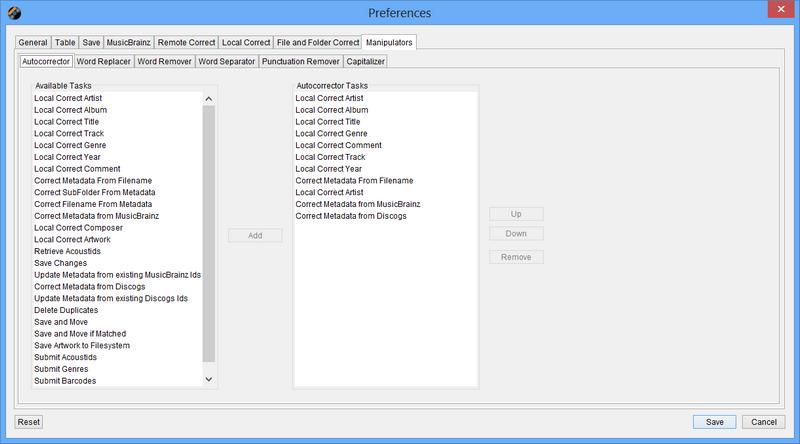
Table of Contents
- 1. Fields
-
- 1.1. Jaikoz Fields
- 1.2. File Location Fields
- 1.3. Tag Fields
-
- 1.3.1. Unique File Identifier
- 1.3.2. Artist
- 1.3.3. Album
- 1.3.4. Title
- 1.3.5. Track No
- 1.3.6. Cover Art
- 1.3.7. Genre
- 1.3.8. Recording Time
- 1.3.9. Comment
- 1.3.10. User Defined URL
- 1.3.11. User Defined Text Information
- 1.3.12. Composer
- 1.3.13. Copyright Info
- 1.3.14. Encode By
- 1.3.15. Original Artist
- 1.3.16. BPM (beats per minute)
- 1.3.17. Encoding Time
- 1.3.18. Playlist Delay
- 1.3.19. Original Release Time
- 1.3.20. Release time
- 1.3.21. Tagging Time
- 1.3.22. Lyricist
- 1.3.23. File Type
- 1.3.24. Involved People List
- 1.3.25. Group Description
- 1.3.26. Title/Songname/Content Description
- 1.3.27. Initial Key
- 1.3.28. Language(s)
- 1.3.29. Length
- 1.3.30. Musician Credits List
- 1.3.31. Media Type
- 1.3.32. Mood
- 1.3.33. Original Album/Movie/Show Title
- 1.3.34. Original Filename
- 1.3.35. Original Lyricist(s)
- 1.3.36. File Owner/Licensee
- 1.3.37. Band/Orchestra/Accompaniment
- 1.3.38. Conductor/Performer refinement
- 1.3.39. Remixed
- 1.3.40. Part of a Set
- 1.3.41. Produced Notice
- 1.3.42. Publisher
- 1.3.43. Internet Radio Station Name
- 1.3.44. Internet Radio Station Owner
- 1.3.45. Album Sort Order
- 1.3.46. Artist Sort Order
- 1.3.47. Title Sort Order
- 1.3.48. ISRC
- 1.3.49. Encoding Settings
- 1.3.50. Set Subtitle
- 1.3.51. Play Counter
- 1.3.52. URL: Commercial Information
- 1.3.53. URL: Copyright/Legal Information
- 1.3.54. URL: Official Song Web Page
- 1.3.55. URL: Official Artist Web Page
- 1.3.56. URL: Official Audio Source Web Page
- 1.3.57. URL: Official Internet Radio Web Page
- 1.3.58. URL: Payment
- 1.3.59. URL: Publishers Official Web Page
- 1.4. MPEG Fields
- 1.5. Tag Field Groups
- 2. Data Formats common to multiple Fields
- 3. Tag Compatability
These represent the Audio Information
These fields are not part of the tags themselves but provide important information about the Tags
Each record is allocated a row number numbered in the order the records were loaded,this cannot be modifed by you..The row Menu popup can be started by clicking on the row number.
If you mark records for deletion and then save changes the successfully deleted records will disappear from Jaikoz and the records will be renumbered
This represents the tag status, you cannot edit this field yourself.
-
C Tag has been changed
-
D Tag has been marked for deletion
-
Tag is unchanged
Describes the tag versions in the file.
When you first load new files into Jaikoz it will check your Save Options. If your save options mean you want to save different tags then currently exist in the file, the version field and record status will be set to Changed.
When editing this is a Selectable Combo .When saving the file it will create tag(s) of these version(s)
Warning if you edit fields which are not supported by the underlying version they will not be saved. For example if you add an Attached Picture and then select to only save a V1 Tag it will not be saved because ID3v1 does not support attached pictures.
Be careful when modifying these files, if your files are already in a Music Library such as ITunes, because it may prevent ITunes from finding them. It is recommended that you run Jaikoz on your files before you add them to Itunes.
In the Read Panel this is the root of where you loaded the files from. When you first start Save Folder Settings/Read Folder is used as the default location to read Audio Files from, you can shift folders from the Base Folder to the Sub Folder with the Shift Base Folder to Sub Folder action
In the Edit Panel this is the root of where you will save your files to, upon loading the file it will always start the same as for the read panel but you can modify it to an existing folder location here AutoFix will check the folder exists
In the Read Panel this will indicate the subfolder the file is within if when loading you specified includesubdirs.
In the Edit Panel this will indicate the subfolder to write the file to, upon loading the file it will always start the same as for the read panel but you can manually enter any valid subfolder name for your operating system here. AutoFix will check the subfolder is a valid name for the operating system.
This is automatically populated by the Correct Sub Folder from Tags action, this uses output mask specified in Rename Sub Folder Settings, you can shift folders from the Sub Folder to the Base Folder with the Shift Sub Folder to Base Folder action
In the Read Panel this is the name of the Audio File
In the Edit Panel this is the new name of the Audio File, upon loading the file it will always start the same as for the read panel, but you can manually enter any valid filename name for the operating system here. AutoFix will check the name is a valid name for the operating system, has a MP3 extension and does not have the same name as another loaded file.
This is automatically modified by the Correct Filenames from Tags action, you can specify an output mask for the filename in Rename File Settings
These are fields that directly correspond to a field in the ID3v24 Specification
The unique file identifier is used by some online music databases to identify a track. In Jaikoz upon a successful MusicBrainz match the Music Brainz Unique Id is added to this field allowing you to access Music Brainz Information on the Web.
This the track number of the recording on the album.
In the Edit Panel you can enter the track number, there are four accepted formats
-
Zeroed Track Number -
Are of the form 01,02,03-11,12.. this has the advantage the track number will be sorted correctly. If the Track Number is used to generate the filename this will also be sorted correctly
-
Non-zeroed Track Number
Are of the form 1,2,3,..11,12 these may not be sorted properly for example 12 would come before 2
-
Zeroed Track Number/Total
Are of the form 01/10,02/10.... where the Total is the total number of tracks on the recording that this is part of.
-
Non-zeroed Track Number/Total
Are of the form 1/10,2/10.... where the Total is the total number of tracks on the recording that this is part of
This is automatically populated by the Correct Track Nos Action, using options specified in Track No Settings
Images can be attached to a recording such as album art. This is a multi value field with multiple attributes, a thumbnail of the first image is displayed in the View Panel
From the Edit Panel you can select Multi Field Count to add new images
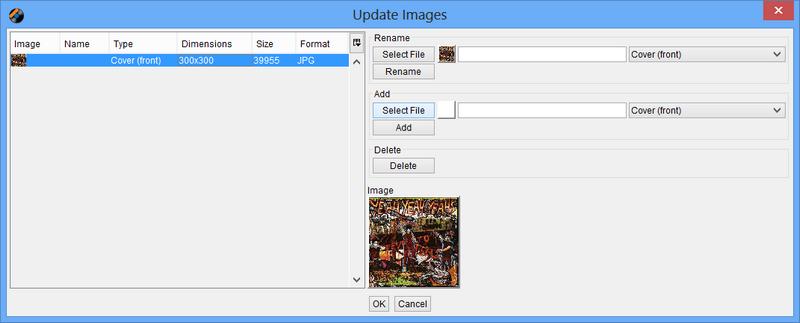
An image consists of
-
The Image itself, you can add an image with the SelectFile button. You should take care to add images of a suitable type and size, only images in JPG format should be added for maximum portability and you should scale the image so that its file size is not too large
-
A name, this is a text field where you can give the image a name
-
A type, this is a Selectable Combo where you select a type from a predefined list
The list on the lefthandside shows all images attached to this audio file. It shows additional attributes than cannot be modified.
-
The dimensions of the image in pixels
-
The size of the picture in bytes
Sometimes you may load an Audio File which contains an Image field but no actual picture because the tagging information was incorrectly created with another application. You can still edit this field with Jaikoz but wll not see a preview until you add a new valid image.
If may contain an image field with a picture in a format not supported by Jaikoz, in this case no preview will be displayed but you can still edit the other attributes of the image.
The supported Image Types are:
-
JPEG
-
GIF
-
PNG
Displays the first genre this Audio File belongs to
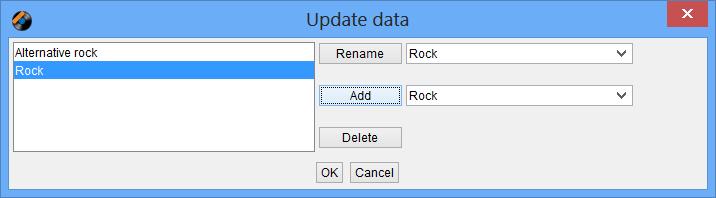
In the Edit Panel editing the field will bring up an Editable Combo you can select one from the predefined list or enter your own. Genre support multiple values opening the Popup Window allow you to enter additional genres.
This is automatically populated by the Correct Genres Action using options specified in Genre Setting.
Displays the Recording Time, this is more commonly shown in most taggers as Year but a full date and time can be held if desired. The Valid formats are here
You can AutoCorrect the Recording Time with the Correct Recording Times using options specified in Recording Time Settings.
Displays a comment description. Comment is a multi value field with multiple attributes but Description is the one you are most interested.
In the Edit Panel you can edit the comment description of the first comment . A comment comprises the language it is written in,a short description of the comment, and the comment itself. Selecting Multi Field Count allows you to edit these other attribute or add extra comments
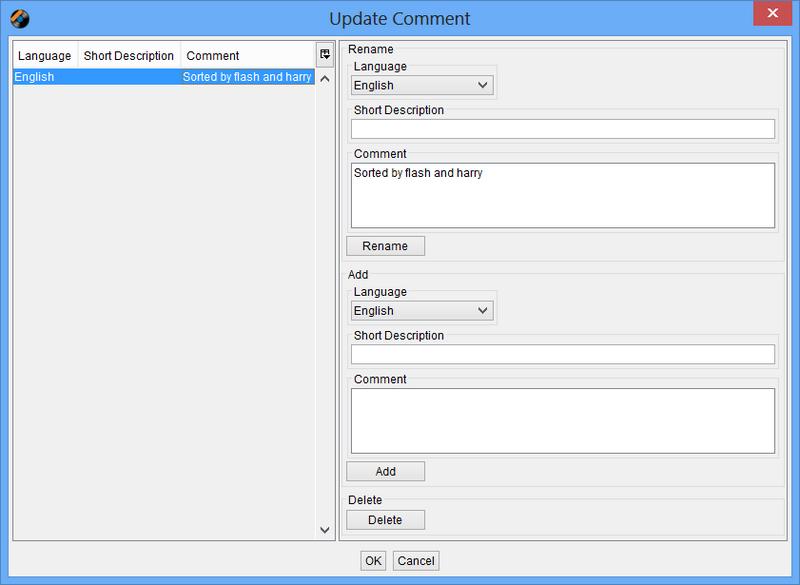
This is automatically populated by the Correct Comments Action using options specified in Comment Settings.
Displays a User Defined URL, this should be used to specify a URL which does not fit into any of the other fields. This is a multi value field with multiple attributes
In the Edit Panel you can edit the URL of the first URL. A User Defined URL comprises a short description of the it, and the User Defined URL value itself. Selecting Multi Field Count allows you to edit these other attribute or add urls.
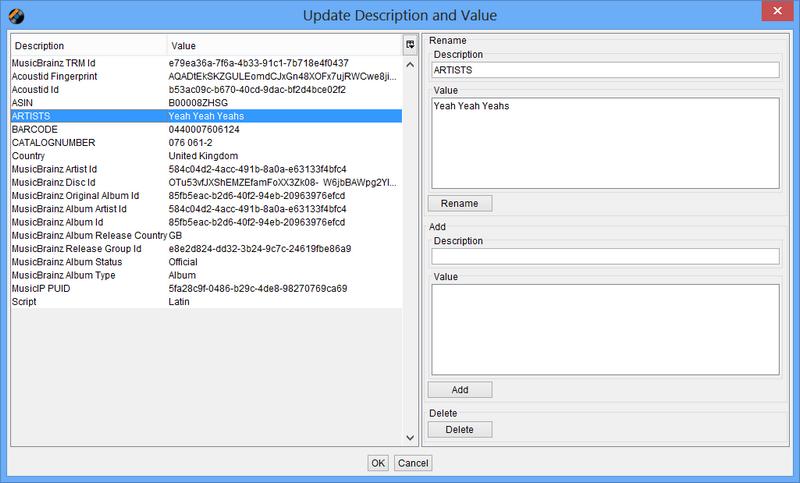
Any other text information not covered by any of the other fields.This is a multi value field with multiple attributes
In the Edit Panel you can edit the text of the user defined text Information.User Defined Text Information comprises a description of which cateorises the text, and the text itself. Selecting Multi Field Count allows you to edit these other attribute or add extra information.
The Date/Time when the original music file was encoded to MP3. The Valid formats are here
The Date/Time when the recording was originally released if this recording is a rerelease. The Valid formats are here
The Date/Time when the original music file was released. The Valid formats are here
The Date/Time when the Audio File was tagged The Valid formats are here
The format of the encoded recording, should always be MP3
The Edit Panel provides a combo box specifying a list of encoded recording file types.
The format of the original recording that the Audio File was encoded from such as LP or CD
In the Edit Panel provides a combo box specifying a list of media types.
If the recording was part of a filem soundtrack, the film should be specified here.
Identifies that this field is a part of a set grouped with other fields with the same set number
This contains the name of the internet radio station from which the audio is streamed.
This contains the name of the owner of the internet radio station from which the audio is streamed.
This defines a value which should be used instead of the album name for sorting purposes. e.g. an album named "A Soundtrack" might preferably be sorted as "Soundtrack".
This defines a value which should be used instead of the artist for sorting purposes.
This defines a value which should be used instead of the title for sorting purposes.
This is a URL pointing at a webpage with information such as where the album can be bought.
This is a URL pointing at a webpage where the terms of use and ownership of the recording is described.
This a URL pointing at the official webpage for the source of the audio file, e.g. a movie.
This is a URL pointing at the homepage of the internet radio station.
This a URL pointing at a webpage that will handle the process of paying for this file.
These are the fields displayed in the MPEG Tab, this is for your information only you cannot modify these values.
This is related to the sampling rate the original file was sampled at. Most music and audio book tracks use Version 1 which can sample information at CD quality (44Mhz), whereas Version 2 and Version 2.5 can be used to sample at lower rates, typically they are used in niche applications such as sampling sound effects
This display the MPEG layer, for MP3 it will always be three, MP2 would have a value of two, and MP1 files would have a value of one.
This displays the sampling rate used to create this file,usually the higher the bit rate the better quality the encoding.
These are groupings of fields that are not fully supported by Jaikoz
This lists all fields that are found within a tag which are recognised by Jaikoz but are not fully supported, Jaikoz recognises all fields specified in the ID3 Specification. Jaikoz supports all fields that are easy for uses to edit but some fields are very specialized and of limited use. These are the fields recognised but editing is not supported. Jaikoz displays the identifier and trys to display the field value
Table 6.1. Not Supported Fields
| ID3 Identifier | Name |
|---|---|
| AENC | Audio encryption |
| ASPI | Audio seek point index |
| COMR | Commercial frame |
| ENCR | Encryption method registration |
| EQUA2 | Equalisation (2) |
| ETCO | Event timing codes |
| GEOB | General encapsulated object |
| GRID | Group identification registration |
| LINK | Linked information |
| MCDI | Music CD identifier |
| MLLT | MPEG location lookup table |
| OWNE | Ownership |
| PRIV | Private frame |
| POPM | Popularimeter |
| POSS | Position synchronisation |
| RBUF | Recommended buffer size |
| RVA2 | Relative volume adjustment (2) |
| RVRB | Reverb |
| SEEK | Seek frame |
| SIGN | Signature frame |
| SYLT | Synchronised lyric/text |
| SYLC | Synchronised tempo codes |
| USER | Terms of use |
| ULST | Unsynchronised lyric/text transcription"/> |
| UFID | Unique Record Identifier |
From the Edit Panel although you cannot edit these fields you are able to remove them. If you select the Popup Menu and select Delete all unsupported fields are marked for removal. If you select the Multi Field Count you can elect to delete individual fields. Deleting fields will not effect the encoded recording but they may be required by an application you use to play Audio Files.
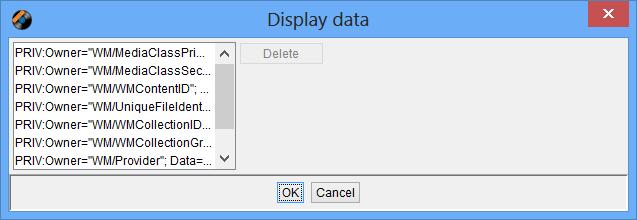
ID3 allows users and application to define their own fields, this lists all fields that are not standard and hence not recognised by Jaikoz
From the Edit Panel although you cannot edit these fields you are able to remove them. If you select the Popup Menu and select Delete all unsupported fields are marked for removal. If you select the Multi Field Count you can elect to delete individual fields. Deleting fields will not effect the encoded recording but they may be required by an application you use to play Audio Files.
Date Time fields formats are as follows, you can enter dates in any of these formats
| YYYY |
| YYYY-MM |
| YYYY-MM-dd |
| YYYY-MM-dd:HH |
| YYYY-MM-dd:HH:MM |
| YYYY-MM-dd:HH:MM:SS |
where
| YYYY is a 4 digit year |
| MM is a 2 digit month |
| dd is a 2 digit day of month |
| HH is a 2 digit hour |
| MM is a 2 digit minute |
| SS is a 2 digit second |
The Merged Tab and Edit Panel show a view of the tag data as it would be stored in ID3v2.4. When changes to tags are saved to some other version some conversion has to occur.
The rarely used synchronised and encryption schemes are not currently supported
ID3v1.0 supports the following fields only, and the fields have maximum fields lengths.
Table 6.2. ID3v1.0 Fields
| Name | Maximum Length |
|---|---|
| Artist | 30 |
| Album | 30 |
| Title | 30 |
| Genre | 1 |
| Recording Time | 4 |
| Comment | 28 |
ID3v1.1 additionally supports a track number. If you specify to save as ID3v1.1 but do not provide a track number it will be saved as ID3v1.0
When saving changes the values in the Edit Panel only predefined Genres will be saved. Only one Comment is allowed.Recording Time will only save the Year part of the recording time.Characters that are not part of the Standard European Character set will not be stored
ID3v2.2 does not support the following fields, they will not be saved.
-
Album sort order
-
Performer sort order
-
Title sort order
-
Set subtitle
-
Mood
-
Produced Notice
-
Musicians Credits
Table of Contents
- 1. Main Menu
-
- 1.1. File
- 1.2. Edit
- 1.3. View
- 1.4. Action
- 1.5. Action Settings
- 1.6. Settings
-
- 1.6.1. Folder Settings
- 1.6.2. Save Settings
- 1.6.3. Table Settings
- 1.6.4. Language Settings
- 1.6.5. Word Remover Settings
- 1.6.6. Word Separator Settings
- 1.6.7. Word Replacer Settings
- 1.6.8. Punctuation Remover Settings
- 1.6.9. External Application Settings
- 1.6.10. Default Browser Settings
- 1.6.11. Look And Feel Settings
- 1.7. Help
- 2. Popup Menu
Use this to load your Audio Files into Jaikoz, selecting the option will start a file browser that you can use to select the folder you want to load Audio Files from. Selecting the Include Sub Folders when searching for Audio Files checkbox will also load any files in the subfolders of the chosen folder. The Specify the number of folders above this selection to set the Base Folder to setting decide how the path selected is split between the Base Folder and the Sub Folder. When set to zero the path selected will be set as the Base Folder (any other folders below will be set as the Sub Folder), as the value is increased more of the path will be put into the Sub Folder field and less put into the Base Folder field. This becomes more important if you want to use the Correct Sub Folders from Tags option because you wil want the folders you want to modify to be in the Sub Folder field, typically you should set the setting so that folders that match metadata such as Artist are placed in the Sub Folder field, and those that are general names such as /Music or /DataFiles are placed in the base Folder field. This becomes important if you want to use the Action/Correct Sub Folders from Tag action to rename subfolders based on metadata.
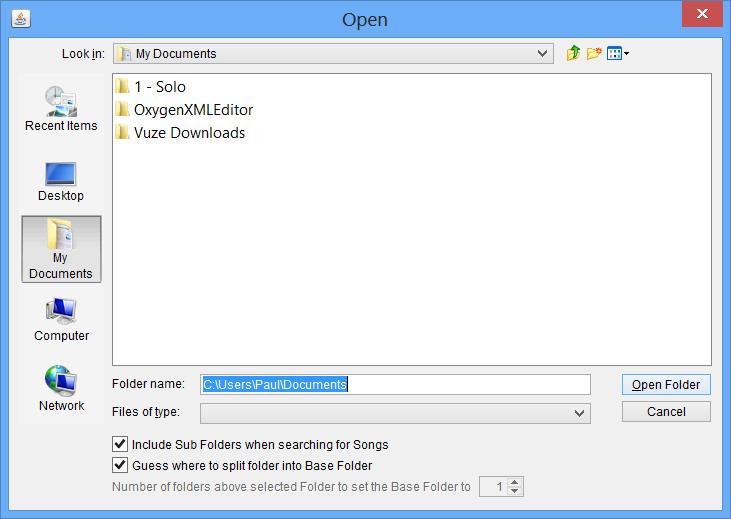
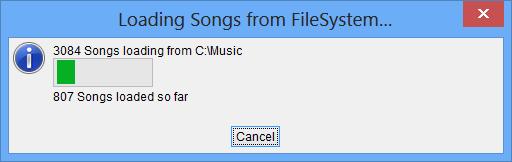
If you are attempting to load a large number of files a Progress Monitor will display showing the file loading progress, if you want to stop loading click on Cancel and no further files will be loaded. You cannot start editing until the load has completed.
Use this to load further Audio Files into Jaikoz, without replacing currently loaded files.
Use this to load Audio Files into Jaikoz, you can use this option to select one or more individual files from a directory without having to load all the files in the directory, any currently loadd files will be discarded.
Use this to load additional Audio Files into Jaikoz, without replacing currently loaded files.
Use this to close the files within Jaikoz. If you have modified the file you will be given the chance to save your changes.
This can be used to install a full license before your trial license has expired, once a full license has been installed this option is permanently disabled.
This will save any changes you have made to your settings through the Settings Menu or Action Settings Menu to file so they will be preserved the next time you start Jaikoz
This will save changes you have made to all Audio Files,including marking files for deletion.
If there were any problems applying changes to some files you will see the following Popup Window

Once the save has completed for all records successfully saved the View Panel will be updated to show the tag information as is currently held in the record, the Edit Panel will show the same as the Read Panel. Any records not successfully saved will still have a status of Changed or Deleted and the records data will be the same as before the editing was done
Exit Jaikoz. First of all it will check if you have made modifications to your settings but not saved them. If you have you will see
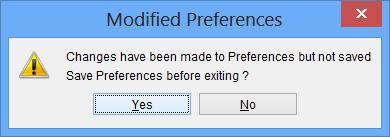
click Yes to save settings or No to not.
It will then check if you have modified any records. if you have you will see
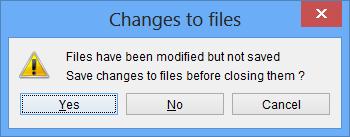
click Yes to save changes or No not to.
After saving if neccessary Jaikoz will then exit
This Menu provides access to basic editing functions.
Copies the selected items from the View Pane, multiple cells within a single column can be copied. This data can be pasted into another applications outside of Jaikoz if you wish.
Pastes the previously copied values to the currently selected fields in the edit pane. If the copy area was larger than the selected paste area, then only the required number of cells are pasted, if the copy area was smaller than the the selected paste area, we reuse the copied cells in order to populate the paste area.
Pastes the previously copied values (including multiple values if they have them) to the currently selected fields in the edit pane
This menu allows you to hide or show various components, your configuration is always automatically saved between invocations of Jaikoz without you having to save settings.
From here you can toggle between showing/hiding the View Pane. By default the View Pane is not shown because hiding it provides a simpler interface,providing more space for editing right away. But showing the View Pane allows you to identify the ID3v1,ID3v2 and MPEG fields and identify the modifications that you have made.
From here you can toggle between showing/hiding the Edit Pane. By default the Edit Pane is shown, you may wish to hide the Edit Pane if you are not planning to make any modifications, and hence provide more space for the View Pane.
From here you can toggle between showing/hiding the Console Pane. By default the Console Pane is shown, you may wish to hide the Console Pane to provide more space for editing. Everything written to the Console also gets written to the user log file regardless of whether the console is visible for the View Pane.
This Menu is for performing auto correcting tasks.
Runs the AutoCorrecter over all records performing the tasks as specified in your AutoCorrecter Settings in the order they were specified. If the task takes a while to complete a Progress Monitor will display showing the Auto Correcter progress,
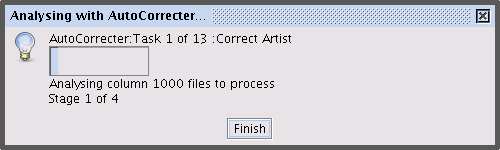
if you want to stop the Auto Correcter click on Cancel and it will not complete the remaining tasks
This menu is for performing corrections that effect the metadata but not the filename, and do not require access to the Internet. All these local corrections run very quickly.
Perform a local correct on the Artist column. More information about the Artist Column can be found here
Perform a local correct on the Album column. More information about the Album Column can be found here
Perform a local correct on the Title column. More information about the Title Column can be found here
Perform a local correct on the Genre column. More information about the Gnre Column can be found here
Perform a local correct on the Track No column. More information about the Track No Column can be found here
Perform a local correct on the Recording Time column. More information about the RecordingTime Column can be found here
Perform a local correct on the Comment column. More information about the Comment Column can be found here
Perform a local correct on the Composer column. More information about the Composer Column can be found here
This shifts the last folder in the base folder over to become the first folder in the Sub Folder field, this is normally used in conjunction with the Correct Sub Folder From Tags action.
This shifts the first folder in the sub folder field over to become the last folder in the Base Folder field, this is normally used in conjunction with the Correct Sub Folder From Tags action.
Renames your subfolder from the information in your tags and the rename mask that you have provided. More information availble from here
Renames your filename from the information in your tags and the rename mask that you have provided. More information availble from here
Extract information from your filename into your tags, more information from here
Creates audio fingerprints for the tracks, allowing your track to be matched with the MusicBrainz Database. More information is available from here
Matches your tracks against the MusicBrainz Database, using the audio fingerprint and/or the track metadata. More information is available from here
Submit your matches back into the MusicBrainz Database, more information availble from here
Mark Files for deletion, the files will only actually be deleted if you run Save Changes.
This Menu is used for defining settings to be used by the Actions.
Jaikoz can perform a number of corrections automatically these can be batched up into the Auto Correcter task. Here we can specify which tasks to perform and in what order. Jaikoz comes with a default list that performs all local auto corrections, some corrections are performed twice this is because the output from one task can effect the input of another task. For example we do the following order:
| Correct Artist |
| Tags From File |
| Correct Artist |
| Correct File from Tags |
Correct Artist will find matches between Artist fields, Tag from File will populate missing Artist fields if possible from the filename it will use the values currently in the Artist column to get as accurate a match as possible. We then run Correct Artist again to take into account of any new matches, we then write the updated Artist fields to the filename with Correct Artist from Tags
The left hand side lists all the Available tasks, the right hand side your current Auto Correcter Tasks
To add tasks to your Auto Correcter Tasks select the task from Available Tasks you want to add then use either Add to or drag them over to the AutoCorrecter tasks.
To remove tasks from your Auto Correcter Tasks selecting an item(s) and select Remove.
To sort tasks in your Auto Correcter Tasks select the item you want to move and either use the Up and Down buttons to move it in the list or simply drag and drop it.
The items in this sub menu allow you adjust the settings used when you run the associated local Correct task
Here we specify settings to be used by when AutoCorrecting the Artist Column, the meaning of these sections can be found here
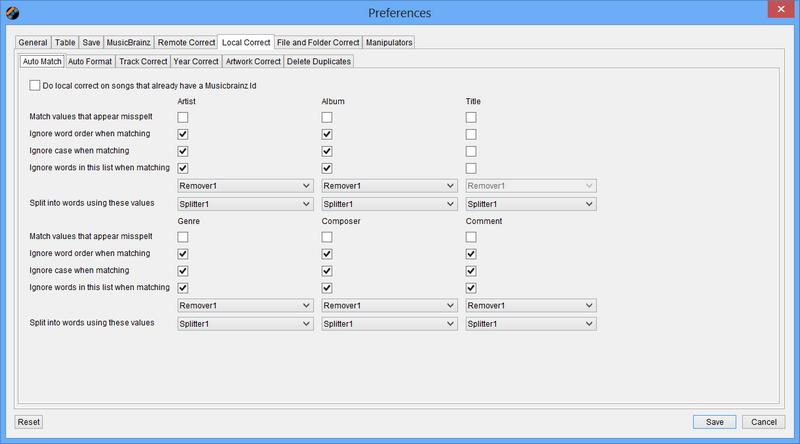
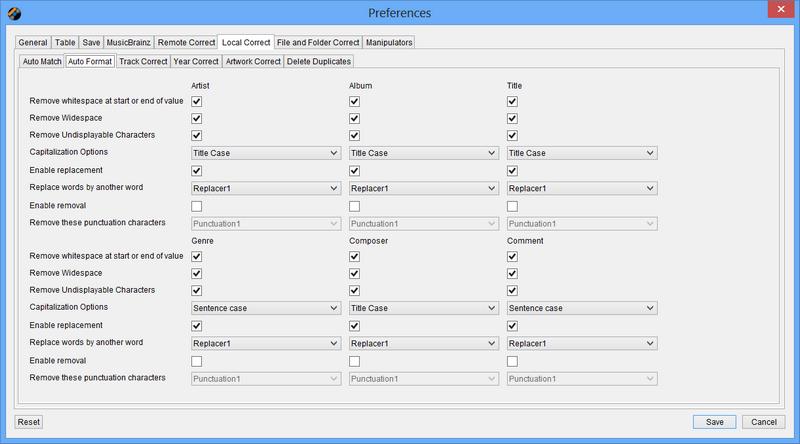
Settings for AutoCorrect of the Album field, the options are exactly the same as for the Artist Settings
Settings for AutoCorrect of the Album field, the options are exactly the same as for the Artist Settings
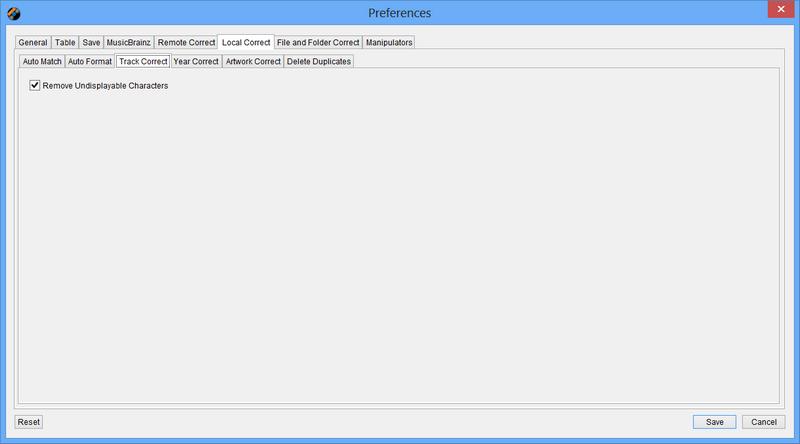
Settings for AutoCorrect of the Genre field, the options are exactly the same as for the Artist Settings
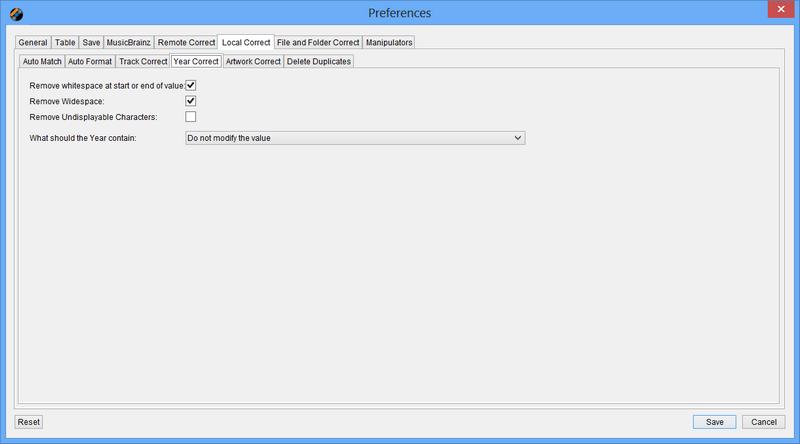
The only setting you can change is to specify removal of undisplayable characters but running the Correcter will also validate the Recording Time Column and if it can not fix it will set it empty
Settings for AutoMatch of the Comment field, the options are exactly the same as for the Artist Settings
Auto Format Options are the same as for artist except there is an extra option to provide a default value.

Settings for AutoCorrect of the Composer field, the options are exactly the same as for the Artist Settings
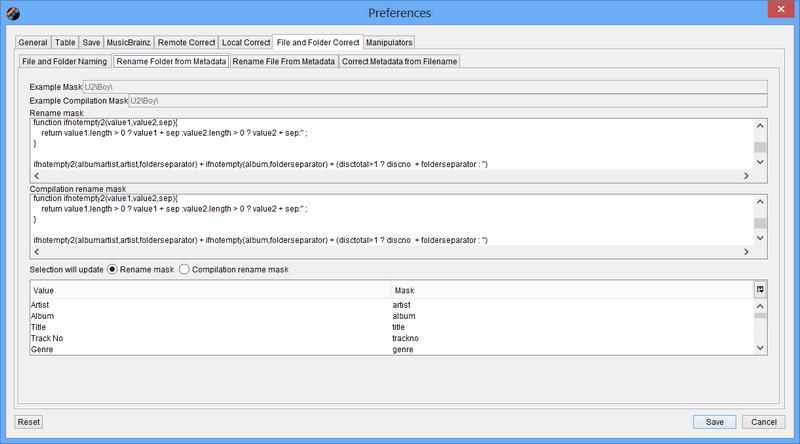
Here we specify a format to be used when the sub folder name is generated from the tag information. You can edit the text box directly and select masks from the list which will automatically append the value. You should use the folder separator %G% rather than typing the folder separator directly.
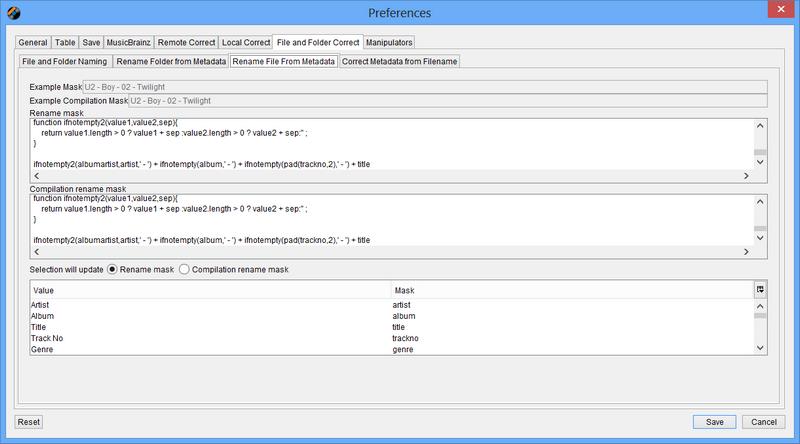
Here we specify a format to be used when the filename name is generated from the tag information, the format should always end with .MP3. You can edit the text box directly and select masks from the list which will automatically append the value
Here we specify settings to be used by when AutoCorrecting tags from filename, the meaning of these sections can be found here


Here we specify settings to be used with MusicBrainz and MusicIP, a full understanding of these sections can be found here
The MusicBrainz Server field specifies what MusicBrainz server to use, currently there is only one but it is expected there will be mirro servers available in the future.
The When matching tracks from MusicBrainz using only metadata only match tracks with a rating field allows you to balance the number of matches against accuracy. If your track has no acoustic id the match is done purely on the metadata, the higher this setting the more likely it is that any match made will be correct, but less tracks will get matched at all. If your track has an acoustic id this setting is ignored because acoustic ids are so accurate it is very likely that if an acoustic match is made it will be for the correct track (even if it is not for the exact version), and forcing a check on metadata as well would throw away accurate matches for tracks with poor or incorrect metadata. The default value is 70.
The Number of Simultaneous matches field can be adjusted to improve performance. Because the match is done over the Internet there is a delay between Jaikoz sending a match request and receiving an answer back from MusicBrainz. If this value is set to one then Jaikoz will just wait for the answer back before sending another match request but if you increase the value Jaikoz will send additional requests whilst waiting for answers, but if you set the value too high for your processor you can actualy slow down processing. Simply put if you have a very fast computer you can increase this value from the default of 8, if you have not you should leave it as it is.
The lefthandside lists all the values that can possibly be populated by MusicBrainz upon a successful match, the first set are held in their ownfield such as Artist and Album, the second set are all held in the User Defined text Info field. By default all fields are populated oon a MusicBRainz match if MusicBrainz has a value but you can select to only populate the field if it is empty , or never to populate it.
If you successfully create an acoustic Id (MusicIP Puid) for a track and you have successfully found a match on MusicBrainz, and your track has a Music Brainz Unique File Id, you can submit the pairing to MusicBrainz the database, by doing this you contribute to the MusicBrainz Project and improve the quality of their metadata. In order to submit data to MusicBrainz you need to have a user account, these are completely free and can be created at the MusicBrainz Website. If you have a user account specify your username and password in this tab in the MusicBrainz Username and MusicBrainz password fields.
All 'Settings' Menus have similar format. At the bottom of the window are three buttons
-
OK saves any changes made. If the Window has multiple tabs changes made to all the tabs will be saved for this session. You have to use Save Settings to save the changes to file
-
Cancel closes the window without making any changes
-
Reset loads the current tab with the defaults, you need to select OK to save these changes.
The Read Folder specifies the location Jaikoz will look in by default. You can either type in a folder or use the Select Folder button to open a file browser to find the folder you require. If Include Sub Folders when searching for Audio Files is selected Audio Files within the subfolders will also be loaded. The Specify the number of folders above this selection to set the Base Folder to setting decide how the path selected is split between the Base Folder and the Sub Folder. When set to zero the path selected will be set as the Base Folder (any other folders below will be set as the Sub Folder), as the value is increased more of the path will be put into the Sub Folder field and less put into the Base Folder field.
If Load from this Folder on Startup is selected when Jaikoz starts it will automatically load audio files from this folder
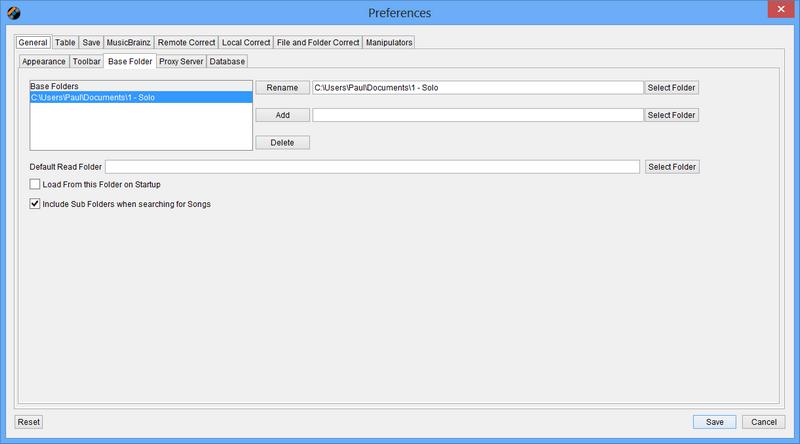
Specifies the default tag versions to save. What tags you save depends upon how you use the Audio Files. ID3v1 is supported by most Audio applications however it is a very limited system, most applications now support ID3v2 tags in some form so there is a strong case for removing your ID3v1 tags from your file so you do not have two datasets to maintain. If your application supports ID3v2.4 you should save your tags to this version as it is the latest and greatest version, however many applications only support ID3v2.3 and ID3v2.2 so you need to take this into account when making a decision.
For ID3v1 tags you can elect to remove them, always write a particular tag version or to keep the existing tag version and provide a default if the tag does not exist.
For ID3v2 tags you can elect to always write a particular tag version or to keep the existing tag version and provide a default if the tag does not exist.
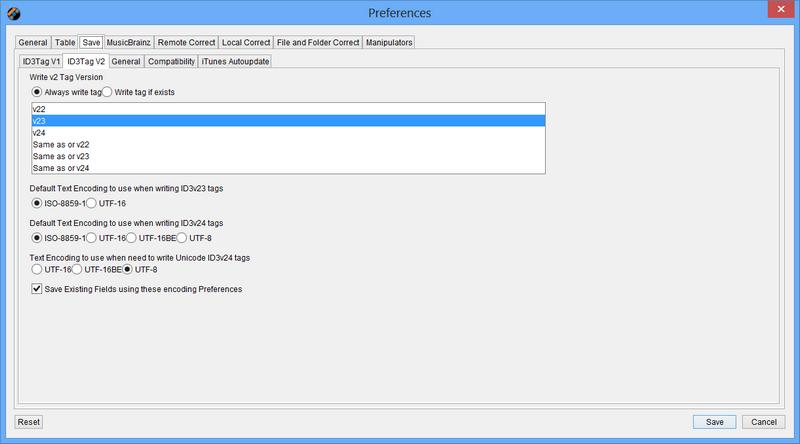
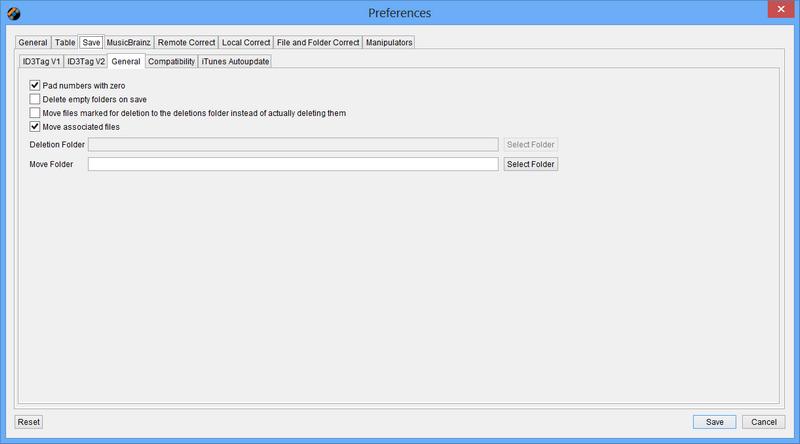
Within the general tab you can decide whether to automatically deletes folders that are now empty because the audio files that were in there previously have been renamed or moved. This is powerful way of housekeeping you filesystem but may not always be desired so it is disabled by default.
This allows you to set how the data tables look and work
From here you can decide which columns are displayed, the order they are displayed in and the the width of the column
To change the order of a field select it and then drag it to the new location. (A field will still be saved to a tag whether it is visible or not)
To hide a field or display a hidden field select it and then double-click on the Visible checkbox
To adjust the width of a field select , then double-click on the Width field and enter the new width, this is measured in pixels
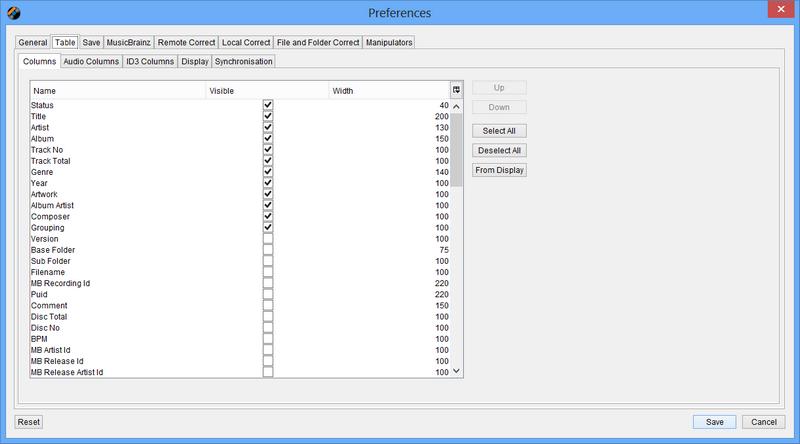
Fields have different colour based on their status, you can modify the colours here. Select the 'Select Colour' button to choose the new colour
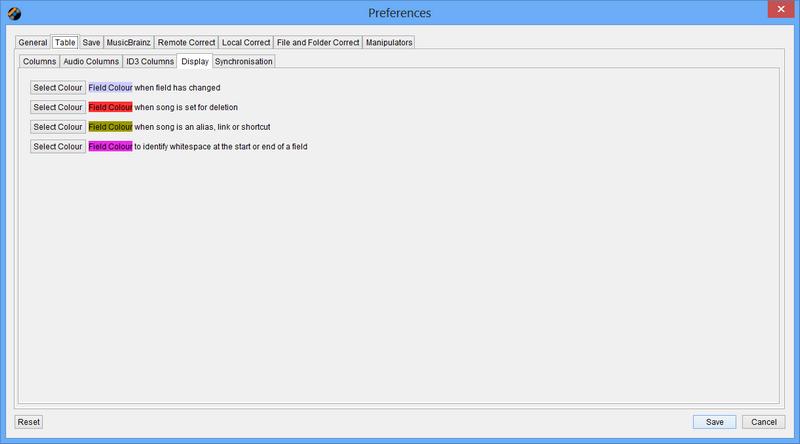
You can change the synchronisation settings here by selecting/deselecting the relevent checkbox.
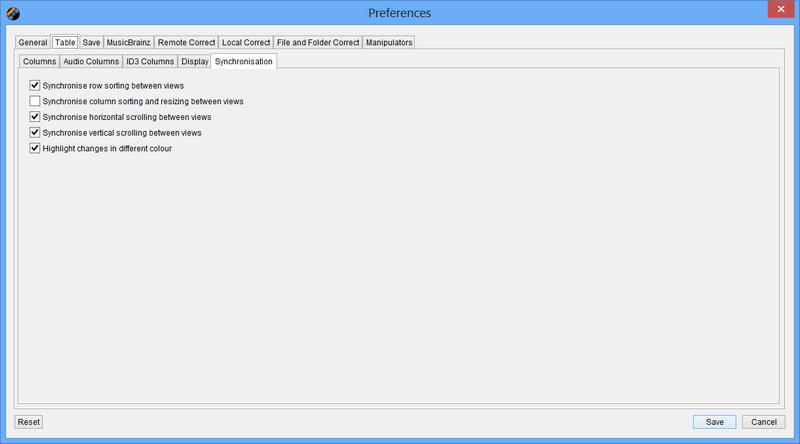
the meaning of these is explained here
This will allow you to specify what language is used in the interface. English and Spanish are currently supported.
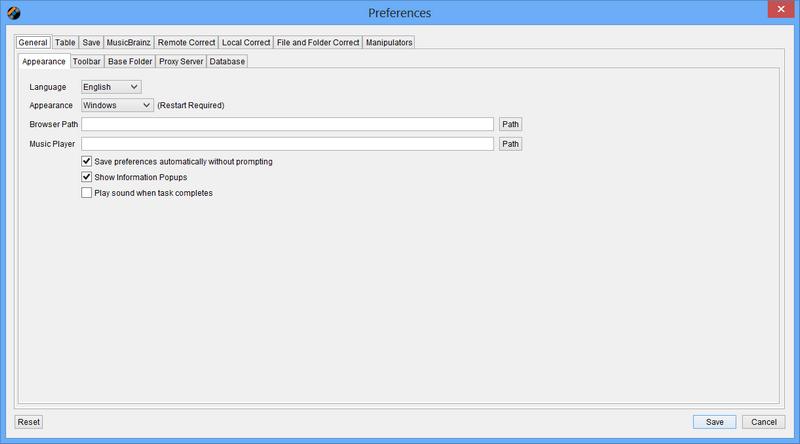
Word Removers are used by AutoMatch, they ignore words listed in a word remover when comparing field values. From here we can specify one or more word remover lists and the words they contain. The Window is split horizontally, the top half specifes the Word remover lists (a default called 'Default ' is provided) when you select a list the bottom half of the window shows all the words that will removed. Use the Add,Rename and Delete buttons in the half to create, rename or delete new word lists. use the Add,Rename and Delete in the bottom half to create, rename or delete a value from the word list
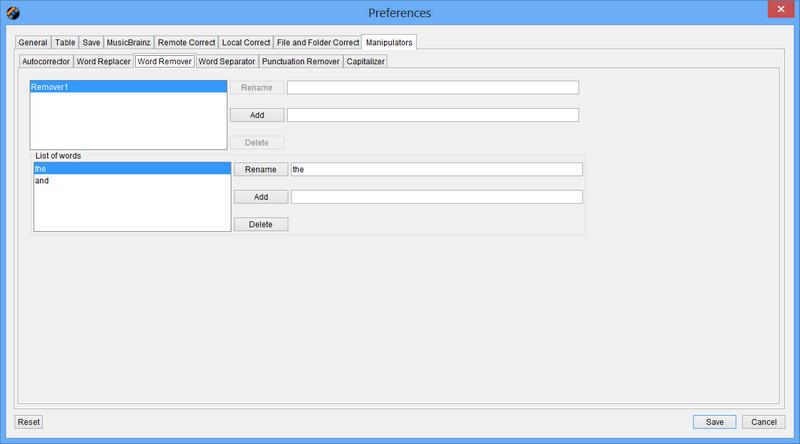
You may wish to define multiple word removers for different columns or for different dataset. For example if you are dealing with Audio Files in a different language you could define a word remover specifically for that language .
Word Separators are used by AutoMatch to identify when a word ends, words are separated by the values. From here we can specify one or more Word Separator lists and the Word Separators they contain. The Window is split horizontally the top half specifes the Word Separator lists (a default called 'Default ' is provided), when you select a list the bottom half of the window shows all the characters that are used to separate words. Use the Add,Rename and Delete buttons in the half to create, rename or delete new Word Separators. use the Add,Rename and Delete in the bottom half to create, rename or delete a value from the word list, only single characters are allowed.
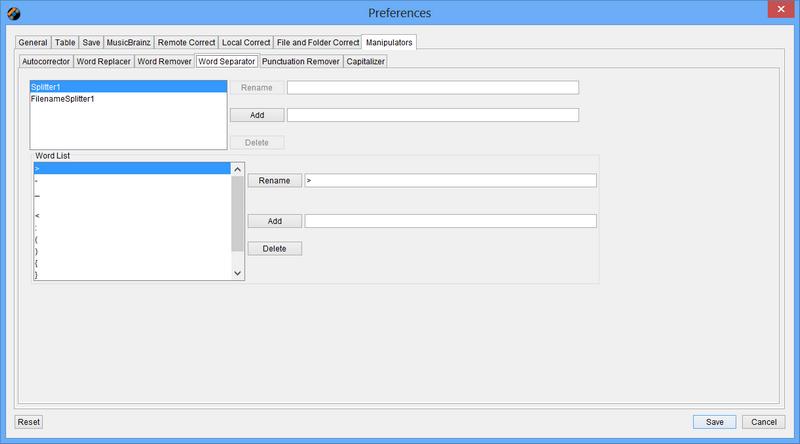
You may wish to define multiple Word Separators for different columns or for a different dataset. For example two Default Word Separators are provided,one is used by the FileName to tag correcter to split a filename into seperate components. In this case we do not want to include the ' ' character because this would break up song titles into different words whereas we want to keep the Title as a single word for this auto correction.
Word Replacers are used by AutoFormat to replace words with another word. From here we can specify one or more word replacer lists and the words replacers they contain. The Window is split horizontally the top half specifes the Word Replacers lists (a default called 'Default ' is provided) ,when you select a list the bottom half of the window shows all the words that will be replaced and by what they will be replaced by. Use the Add,Rename and Delete buttons in the half to create, rename or delete new word replacers. Use the Add,Rename and Delete in the bottom half to create, rename or delete a valuepair from the word list, you have to specify what the word is and what you want to replace it by.
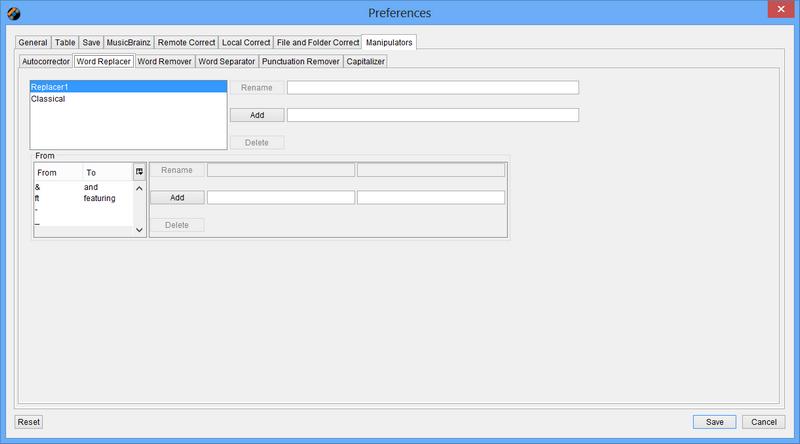
You may wish to define multiple word replacers for different columns or for a different dataset. For example if you are dealing with Audio Files in a different language you could define a word replacer specifically for that language.
Punctuation Removers are used by AutoFormat to remove characters we do not want. From here we can specify one or more Punctuation Removers lists and the Punctuation Removers they contain. The Window is split horizontally the top half specifes the Punctuation Removers lists (a default called 'Default ' is provided) , when you select a list the bottom half of the window shows all the punctuation that will be removed. Use the Add,Rename and Delete buttons in the half to create, rename or delete new punctuation removers. use the Add,Rename and Delete in the bottom half to create, rename or delete by a value from the list, only single character are allowed.
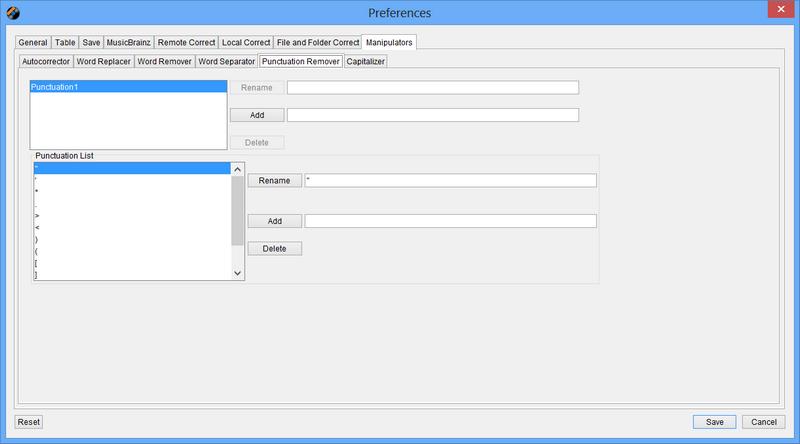
You may wish to define different punctuation removers for different columns or for a different dataset. For example if you are dealing with Audio Files in a different language you could define a punctuation remover specifically for that language.
Specifies the External Application used to process from the 'Run External App' option.

Jaikoz will try to find and use the Default Browser but this is not always possible. This setting allows you to specify the path of the browser that you would like to use and overrides any browser Jaikoz finds automtically.
Jaikox provides two 'Look and Feels'. By default Jaikoz runs as you would expect on the operating system you are using. But if you use Jaikoz on more than one computer (For example an Apple Mac and a Windows PC).there is a generic Look which makes Jaikoz look the same on all operating systems (Windows,Linux,Mac OS X) called Cross Platform If you change this option changes will not take place until you restart Jaikoz. Below we show the default 'Looks' available on Windows XP.
Linux

Cross Platform
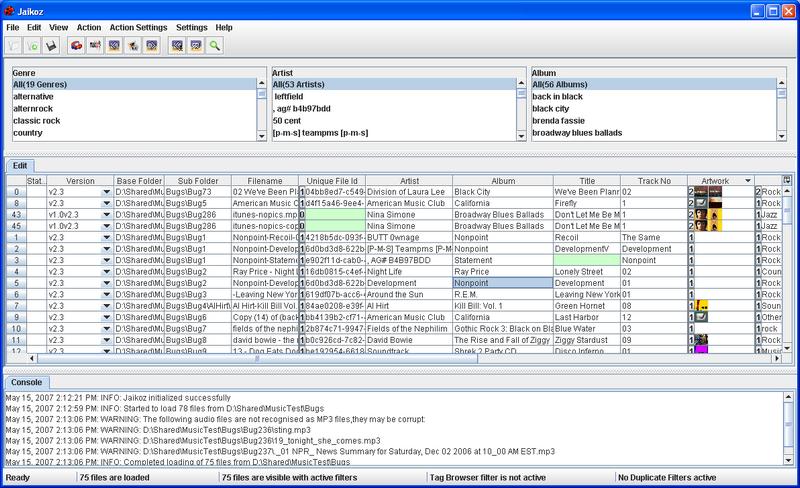
This menu contains access to information about Jaikoz and a number of 3rd party websites that may be useful to you.
Popup Menus allow you to do some tasks straightaway from where you are based on what you have currently selected.Most of the actions also have an associated keyboard shortcut.
In the Read Panel you can invoke this Menu from the row number, it will effect all row numbers you have selected.
-
Run External App, processes the item using your configured external application. Note you can use this to invoke applications such as a music players or playlist editors.
-
Close Files,close all the selected files
In the Edit Panel you can invoke this Menu from the row number, it will effect all row numbers you have selected.
-
View this track at MusicBrainz, this option is only available when you have exactly onetrack selected, and that track has a MusicBrainz Unique File Id. It will open the MusicBrainz page for the track in your browser.
-
Close Files,close all the selected files
In the Read Panel Table you can bring up a Popup Menu to act on all selected fields in the table
In the Edit Panel Table you can bring up a Popup Menu to act on all selected fields in the table