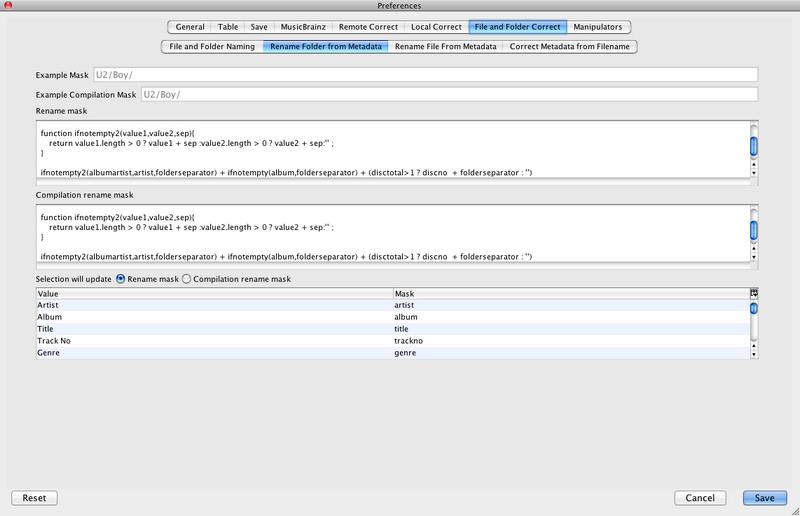
This shifts the last folder in the base folder over to become the first folder in the Sub Folder field, this is normally used in conjunction with the Correct Sub Folder from Metadata action.
This shifts the first folder in the sub folder field over to become the last folder in the Base Folder field, this is normally used in conjunction with the Correct Sub Folder from Metadata action.
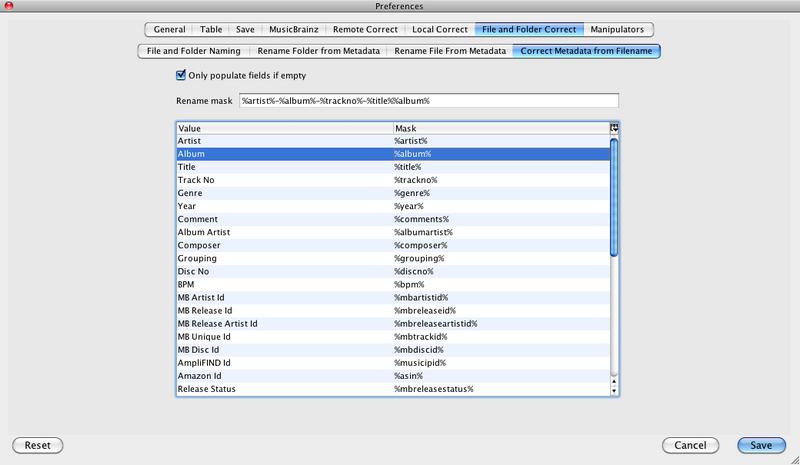
Usually fields provides more accurate information than the filename of the song. But sometimes the field information is less accurate or missing information that can be found in the filename. However although there are some informal conventions for naming songs, files can be a named in any way the user wishes, for example
-
Artist-Album-Title.mp3
-
Artist_Album_TrackNo_Title.mp3
-
Title Album.mp3
-
Title-Artist.mp3
With other applications when you extract information from a filename into fields you have to specify the format of the filename and how parts combine. But as can be seen from above different filenames are often formatted in different ways so it is impossible to process a number of songs in one go.
But Jaikoz uses a special algorithm based on the general AutoCorrecter method to work out the parts by comparing the filename not only with its corresponding fields but also the fields of all the other loaded songs.
Jaikoz assumes that filenames are made up only of
-
Artist
-
Album
-
List item
-
Track No
-
Characters to separate the fields
-
File Type (e.g.mp3)
The correction will take the following steps
-
Generate a list of songs where it may be useful to extract information from the filename. Tags which already contain an Artist,List item and Album value are not included.
-
Run the AutoCorrecter algorithm on the filename using filename preferences this will generate a Filename List of distinct filenames together with a Word Count, words are calculated based on the Split Filename option specified in your Tags from Filename Settings. Note because The list item is commonly separated only with the space character the space character should not be defined as a suitable word separator character for separating parts of the filename(i.e. Artist from Album)
-
For each record in the File Name List.
-
Compare every word with all the Artists in the Artist Column, similarity is based on the Split Words option specified in your Tags from Filename Preferences. If it finds a match mark the word as being an Artist.
-
Compare every word except for marked words with all the Album in the Album Column,similarity is based on the Split Words Word Separator. If it finds a match mark the word as being an Album
-
Check all words except marked words to see if they are a number, if they are mark the word as being a track number.
-
-
For each record in Filename
-
Compare the number of words with the number of marked words, if no matches have yet been made
-
If number of words=3 assume filename format is Artist Album List item
-
Mark first word as artist
-
Mark next word as album
-
Mark next word as list item.
-
-
If number of words=2 assume filename format is Artist List item
-
Mark first word as artist
-
mark next word as list item.
-
-
If number of words=1 assume filename format is List item
-
Mark first word as list item
-
-
-
-
For every file
-
If number of unmarked words is 1
-
If list item not set to List item
-
else if artist not set to Artist
-
else if album not set to Album
-
else do nothing
-
-
If number of unmarked words is 2
-
If list item not set to List item
-
else if artist not set to Artist
-
else if album not set to Album
-
-
If number of unmarked words is 3
-
If list item not set to List item
-
else if artist not set to Artist
-
else if album not set to Album
-
-
-
For every Audio File
-
If we decided to process this Audio File find match in Filename List
-
If matched Artist set TagArtist to filename Artist
-
If matched Album set TagAlbum to filename Album
-
If matched List item set TagListitem to filenameListitem
-
If matched Track set TagTrack to filename Track
-
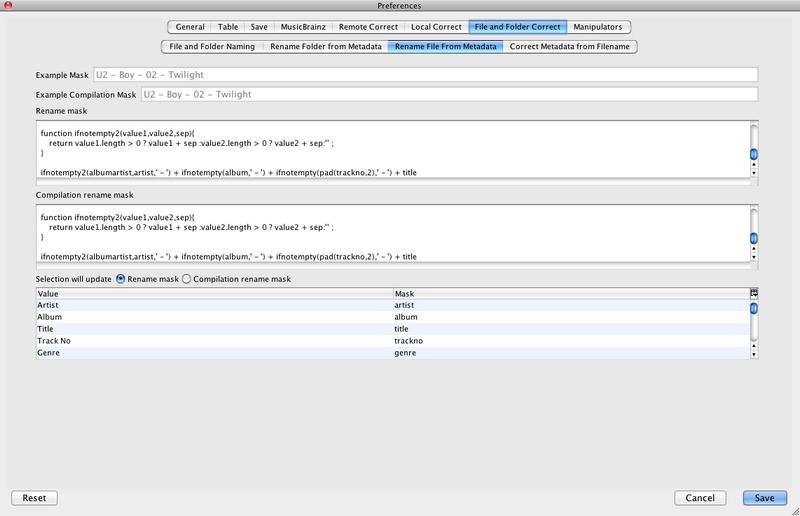
This modifies the Filename to reflect the values of the fields within the song. There is one mask for songs on compilation albums, and one for all other songs, this is useful because for compilation albums you might want to treat the artist name differently. Any Javascript expression is supported, this gives great flexibility allowing the use of regular expressions and character functions.

It is usually useful to stores songs on your computer in multiple sub folders for example by having a different sub folder for every artist. The AutoCorrecter applies the formatting mask specified and generates a sub folder. This modifies the Filename to reflect the values of the fields within the song. There is one mask for songs on compilation albums, and one for all other songs, this is useful because for compilation albums you might want to treat the artist name differently. Any Javascript expression is supported, this gives great flexibility allowing the use of regular expressions and character functions.