Local correct groups together some powerful tasks that can be performed without an Internet connection, each task attempts to improve the data in one column. Most of the local correct tasks work in a similar fashion, this is explained fully in the Cross Referencing Correct section, the other local correct tasks are discussed next
Often artwork is not embedded into the metadata but held as a separate file, sometimes it is not available at the same time and has to be retrieved later. But cover art is much more useful if it is embedded into the metadata because only then will it be displayed in Music players such as iTunes and iPods. Correct Artwork checks the folders of the songs you are correcting and adds any image files it finds to the audio file unless they have already been added. The following formats are supported JPEG,PNG and GIF
There are options you can make that apply to Correct Artwork and when getting artwork from a MusicBrainz or Discogs match
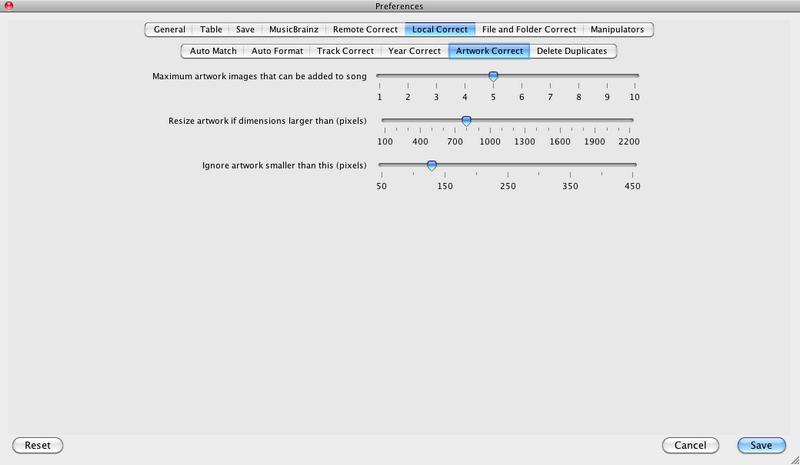
Many applications only show the first image, so you may decide to only add the first image by setting the value of Maximum artwork images that can be added to song.
You can resize large images using Resize Artwork if dimensions larger than (pixels), very large images will make your songs correspondingly large.
You can ignore artwork smaller than a certain size using Ignore artwork smaller than this (pixels)
By default Local Artwork Correct ignores folders containing more than fifty songs because it is unlikely that the folder contains only a single album, but sometimes this is the case and you can remove this restriction by checking Preferences/Local Correct/Artwork Correct/Allow Artwork to be loaded from folders containing more than 50 songs

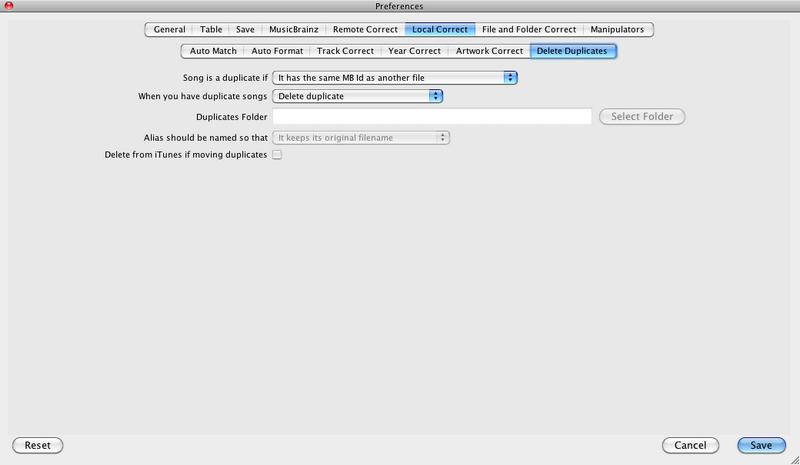
Song is a duplicate if allows you to decide how Jaikoz find duplicates. You can detect duplicates based on MB Id, Acoustid, Release Id or combinations of. It is important to understand the options available when you use Jaikoz to delete duplicates.
The song is a duplicate if it has the same MB Recording Id, be careful using this option because if you categorise your music by albums this could delete a song from one album if you have the same song on multiple albums.
Songs are only deleted if you have the same recording matched to the same album in duplicate, and they are acoustically the same because they have the same Acoustid. Beware that this option does not protect against the rare case when an album is released with the same identical recording on it more than once. Nor will it find duplicates for songs that do not have an Acoustid.
This option ignore release groupings and find matches purely sonically based on the same Acoustid id.
This is the default, songs are only deleted if you have the same recording matched to the same album in duplicate. Beware that this option does not protect against the rare case when an album is released with the same identical recording on it more than once.
The song is a duplicate if it has the same MB Recording Id and matching Acoustid. Matching on both criteria makes it very sure to be the same. Be careful using this option because if you categorise your music by albums this could delete a song from one album if you have the same song on multiple albums.
The When you have duplicate songs option defines what to do once duplicates have been found. They can either be deleted , moved to a special Duplicates folder or linked to the duplicate file that is not being deleted. If you want them to be moved you must specify a Duplicates Folder. If you want to link them use the Alias should be named so that option to specify if they should keep their name, be renamed to match the file they link to, or have a combination of both names.
Delete from iTunes if moving duplicates searches for these songs in iTunes and removes them from the iTunes library as well.
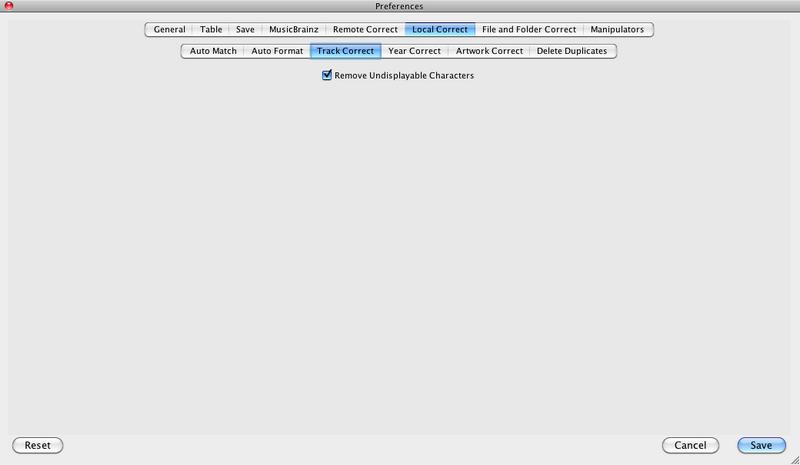
If Remove Undisplayable Characters is selected control characters can be removed.
If you have a number of songs that you wish to adjust the data for the chances are at least some of them are by the same Artist and from the same Album. However if the source for these files are different the Metadata may be subtlety different,this means that when you try and play all tracks by a particular group or artist they do not all appear. For example the following artists are all different,but only slightly
-
Flatuella Blurb - All words start with a capital letter
-
Flatuella blurb- First words start with a capital letter
-
The Flatuella Blurb - Additional definite article
-
Blurb Flatuella - Words in different order
-
Flatuella Blorb - Misspelling of second word
-
Flatuella Blurb - Extra white space character at end of word
-
Flatuella_Blurb - Words separated by underscore character
-
Flatuella Blurbs - Extra punctuation
Which is the correct answer?
Item five is a misspelling so it is not this,item four is not that easy to read but is the accepted format for some audio encoders, any of the others could conceivably be OK. The correct answer really depends upon your personal preference. Auto Format allows you to automatically modify values to your personal taste. Are all these artists the same band, as a human reading this document it should be obvious that they are but to a computer it is not. But Auto Match can detect these similar values, again the similarity is defined by you.
Cross Referencing Correct try’s to work out which is the correct value to use by a combination of comparing similar values, and user options. Local Correct is available for the following fields
-
Artist
-
Album
-
List item
-
Genre
-
Recording Time
-
Comments
-
Composer
Cross Referencing Correct works on a column by column basis,it identifies similar values and converts all similar values to the most common value. The procedure is as follows
-
Create an empty new list
-
For each record retrieve the Field Value relating to that column
-
Using the options defined in Auto Match Preferences calculate a Match Value
-
Using the options defined in Auto Format Preferences calculate a Format Value
-
Has this field been found before, if not add it to the list with Count of zero
-
If it has just increment the Count of this field in the list
-
Sort the list by their Match Value and then Count,highest count first.
-
If a record has the same Match Value as its preceding record set its Format Value to the same as the previous songs Format Value.
-
Go through each song and find the song in the list with the same Field Value and set the name in the song to the Format Value.
Local correct tasks like Local Artist Correct only modify songs that do not have a MusicBrainz Id. The reason for this is that Local Correcters are primarily provided to improve the quality of your metadata in preparation for MusicBrainz matching, so having run Autocorrecter on a group of songs you may run it again after making some manual edits to match the remaining unmatched songs, and would not expect songs that have been successfully matched to MusicBrainz to be modified further. You can make it run against all songs by checking Preferences/Local Correct/Auto Match/Do local correct on songs that already have a MusicBrainz Id
You can decide on what the Correcter deems is similar when matching by selecting options from the Auto Match Preferences . The more options you enable the more matches the correcter will make but more false positives will also occur.
Jaikoz can look for values that sound the same when spoken (based on English) but are spelt differently. For example Audio Bullies and Audio Bullys
If a field contains multiple words this option will ignore the order. This is particularly useful for Solo Artists because some Audio Encoders specify surname then first-name. For example 'Kate Bush' and 'Bush Kate' would match.
Ignore case when matching values. For example 'Flaming Lips' and 'Flaming lips' would match.
Certain common words in a Language are often used without much thought especially in group names. In English the biggest culprit is 'The'. This option allows to specify a Word Remover to use. For example 'Flaming Lips' and 'The Flaming Lips' would match.
Earlier we looked at word order, but what defines a word. The Space character separates words but other characters such as '.' and ',' also separate words. Here you can specify a Word Separator which define show to break up words
Auto Format formats fields to save you from tedious typing , there are a number of options
This removes whitespace at the start or end of field values, this extra whitespace is marked pink in the field values
Widespace is when there is more than one space between words, this option removes the additional spaces so that there is only one space between words
This option removes any characters found that do not relate to a character set, this works for all languages as defined in the Unicode standard, it is very useful for removing control characters
This option changes the case of the field, the options are as follows
-
No capitalization
-
Capitalize all words
-
Capitalize first word
-
Capitalize all letters
-
Lowercase all letters
If you select to Capitalize all words or Capitalize first words there a few improvements Jaikoz makes to simple capitalizing. The rules listed below are processed before the simple capitalization method of making the first letter upper case and the remaining letters of a word lowercase
-
O'Reilly rule
-
Mc rule
-
Acronym rule,words between 3 and 5 characters that contain only uppercase letters and numbers are not modified
Some words have acronyms or shorthands that can be used instead, this option allows you specify a Word Replacer to always use the one you want. For example 'ft' and 'Feat' are common shorthands for 'Featuring'. And '-' and '_' are often used instead of spaces.
Specify a Punctuation Remover which will remove the list of characters you have specified from the resulting output.