Table of Contents
- 1. Remote Correct
-
- 1.1. What is MusicBrainz ?
- 1.2. What is Discogs ?
- 1.3. What is Acoustid ?
- 1.4. What is the JThink Music Server ?
- 1.5. How Does Jaikoz Use MusicBrainz and Acoustic Fingerprinting ?
- 1.6. Retrieve Acoustic Ids
- 1.7. Auto correct Metadata from MusicBrainz
- 1.8. Auto correct Metadata from Discogs
- 1.9. Manual Correct Metadata from MusicBrainz
- 1.10. Update Metadata from MusicBrainz
- 1.11. Update Metadata from Discogs
- 1.12. Match Songs to one MusicBrainz Album
- 1.13. Match Songs to Specified MusicBrainz Album...
- 1.14. Match Songs to MusicBrainz Album by Barcode...
- 1.15. Match Songs to MusicBrainz Album by Catno...
- 1.16. Match Songs to one Discogs Album
- 1.17. Match Songs to Specified Discogs Album...
- 1.18. Match Songs to Discogs Album by Barcode...
- 1.19. Match Songs to Discogs Album by Catno...
- 1.20. MusicBrainz Server
-
- 1.20.1. MusicBrainzServerPreferences
- 1.20.2. Submit MusicBrainz/Acoustid Pair
- 1.20.3. Submit MusicBrainz Genres
- 1.20.4. Submit MusicBrainz Barcodes
- 1.20.5. Submit MusicBrainz Ratings
- 1.20.6. Submit New Release
- 1.20.7. Add to your MusicBrainz Collection
- 1.20.8. Remove from your MusicBrainz Collection
- 2. Local Correct
-
- 2.1. Correct Artwork
- 2.2. Delete Duplicates
- 2.3. Correct Track Nos
- 2.4. Cross Referencing Correct - Correct Artists/Albums/Titles/Genres/Recording Times/Composers
- 3. File and Folder Correct
- 4. Delete Duplicates
- 5. Auto Correcter
Auto Correction allows your song information to be corrected without you manually entering the information, this is a much quicker and more accurate way of sorting out your music. Jaikoz can perform Local Correct this does not require internet access, and is very quick but can only work with the metadata that you already have in your files. Much more powerful are Auto correct from MusicBrainz and Auto correct from Discogs, these use online databases to do comprehensive matches, this is much more accurate but takes longer. File and Folder Correct is another form of Local Correct that modifies your folder and file names, rather than just your metadata. The Autocorrecter allows you to batch up a number of these tasks into a single task. Usually you would use all these methods to clean up your Music Library
Remote correct groups tasks together that require Internet access in order to run
MusicBrainz is an online database of information on more than ten million songs. This is a community based database so anybody can view, add or edit information in the database, but it there is a system of moderation to ensure only correct information persists. The information is of an extremely high quality and of exceptional detail. MusicBrainz is the primary source of information Jaikoz uses to match your songs, matching against MusicBrainz means Jaikoz can fix the metadata in your songs but it also means your songs can then be used in many other MusicBrainz based applications. For example you can also upload your song collection from Jaikoz to MusicBrainz and share the details with other MusicBrainz users.
Discogs is another online database of information similar to MusicBrainz, Discogs also allows you to buy and sell records and CD's to other Discogs users. We use MusicBrainz and Discogs to get the best possible coverage of your song library.
Acoustid listens to a song, and create an audio fingerprint of the song based on the actual music. The idea is that different songs always have different fingerprints , but the same song encoded in different formats (such as mp4 or mp3) or in a slightly different way will have the same fingerprint. Acoustid then provides a database that matches acoustid to recordings in the MusicBrainz Database. We can use this database to match your songs and it is really useful if your songs have no metadata, because it allows Jaikoz to still find a match if the fingerprint is in the Acoustid database. Jaikoz uses Acoustid as its main database for audio fingerprinting.
The JThink Music Server is a dedicated server containing both the MusicBrainz and Discogs data in a single database optimized to give the best results, quickly. It is regularly updated witht he lates data from MusicBrainz and Discogs. Because the JThink Music Server is only used by Jaikoz and SongKong it is designed to return exactly the information required and no more making it about ten times faster than the standard MusicBrainz and Discogs servers.
Jaikoz allows to lookup your songs by both the acoustic id and the metadata making it very accurate. Jaikoz automatic matching is release based (it try’s to match groups of your songs to MusicBrainz Releases) and if you have good metadata acoustic fingerprinting may not be needed, but for songs that cannot be matched using release matching acoustic fingerprinting is very useful. Of course both metadata and acoustic matching of many songs can take some time so Jaikoz is designed to run without intervention, only when it has completed are you required to check the results and save changes if you are happy with them. Checking results is important because there are so many potential scenarios involved in music matching, and so many recorded songs that Jaikoz cannot guarantee 100% match, but most users report a success rate of 95%.
This generates a Acoustid fingerprint for your songs, this is all done locally without the need to contact Acoustid and can therefore be done quite quickly, the fingerprints are stored in the Acoustid Fingerprint field for later use in the matching phase, generating a fingerprint for a song only has to be done once and because the Acoustid for a particular file will never change, the Acoustic Id is automatically saved to file as it is created.
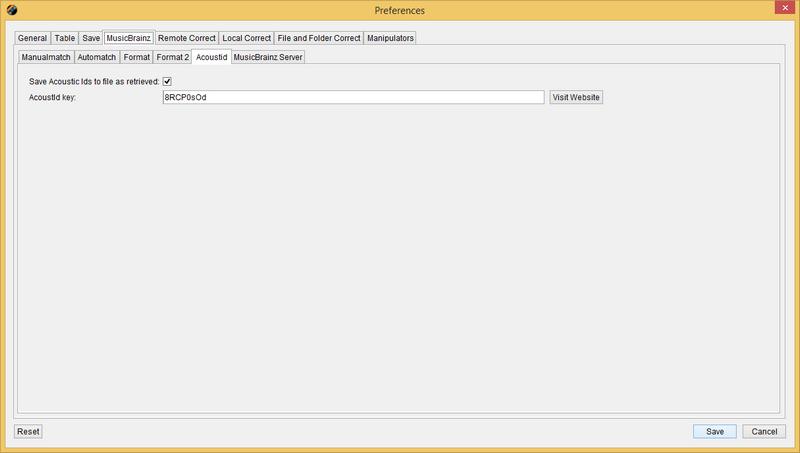
You can change the following options the Preferences/MusicBrainz/Acoustid window.
The Save Acoustic Ids to file as retrieved save the acoustic id to the file as it is retrieved. This protects you from losing your work against a system crash, because acoustic ids are always correct, no verification is required by the user
Once you have matched your songs to MusicBrainz you can submit your fingerprint/MusicBrainz Id pairings to Acoustid to help build the database. But to do this you need to get a (completely free) Acoustid key, enter that into the Acoustid keyfield

This attempts to find a match in the MusicBrainz Database, using metadata such as artist, album and title, track duration and track number and/or the Acoustic Id. Jaikoz groups your songs by album if they have album field specified and/or by folder and first of all try to find a matching release on MusicBrainz for all the songs in the grouping, a sophisticated algorithm analyses potential matches and selects the one that matches all songs the best and is most similar to your preferences including preferred country and media format. If no suitable match is found Jaikoz then does song by song matching based on the metadata, and then for remaining songs it matches based on acoustic ids. Jaikoz will complete as many fields as it can from MusicBrainz if they are enabled in your Auto Format options.
Because different customers use Jaikoz in different ways there are a number of preferences you can change
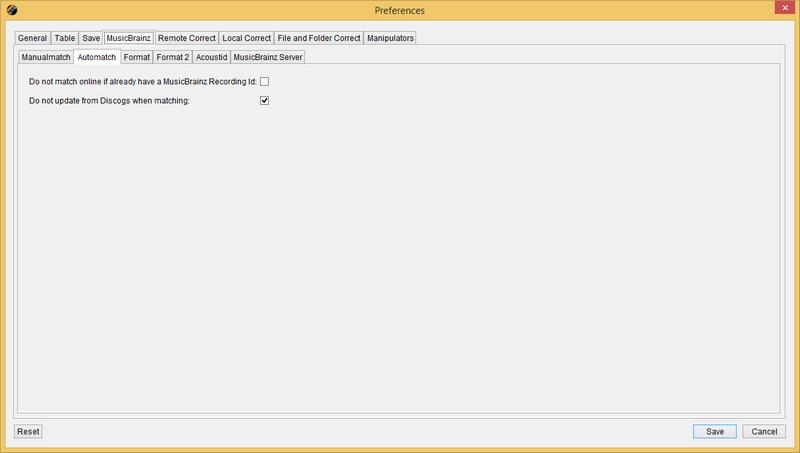
The Do not match online if already have a MusicBrainz Recording id option allows you to skip over songs that have already had a Recording id, this option is enabled by default.
If the matching MusicBrainz song has a match to a Discogs Release Jaikoz can use Discogs to retrieve additional information for the song, if you do not wish to do this then check Do not update from Discogs when matching
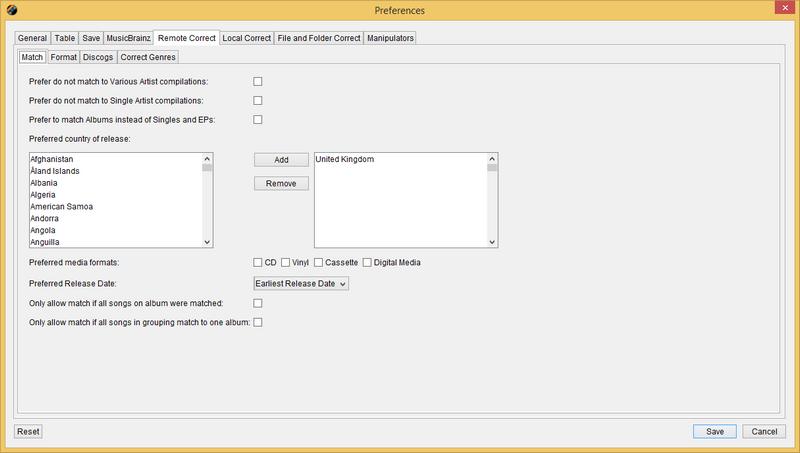
These preferences apply to both matching from MusicBrainz and matching from Discogs
The Prefer do not match to Various Artist Compilations and Prefer do not match to Single Artist Compilations options will give preference to matching a song on an original release such as original album or single, and will only match to a compilation album as a last resort.
The selected Preferred Country of release will give song linked to a releases in this country an improved score.
The selected Preferred Media Formats will give songs with releases of this type an improved score.
If Preferred Release Date is set to Earliest Release Date this will boost scores of releases with the earlier release dates, you can also specify Latest Release Date and No Preference
The Only match if all songs on album were matched option is useful if you have a collection that already had good metadata and you want to ensure that only really good matches based on your groupings are made but it does also mean if you have any partial albums they will not be matched to a MusicBrainz or Discogs release.If you have only this option enabled it means that any album that is matched must be completely matched but this doesn't have to be on a folder by folder basis, so for example if you have a folder containing 10 songs that failed to match any album but existing metadata in the songs creates two groupings of 5 each, then one of those grouping could be matched to a 5 track release that would be okay.If this option is enabled individual song by song matching to the best album does not take place.
You can get safer matching if Only allow match if all songs in grouping match to one album is enabled. If your songs are already organized one folder per album then songs in the folder will only be matched to a release if all songs in that folder can be matched to the same release. Usually Jaikoz is clever enough to recognise when you have a multi disc release and have created separate folders per disc as well, in this case it will only allow a match if songs in each subfolder are matched to a disc of the same release.Usually this option should be enabled because although it prevents album folders being broken up but allowances are made if Jaikoz identifies you have some have folders containing a random assortment of files, and it also identifies when you have duplicate file sin the same folder. If you disable this option then if Jaikoz fails to match the folder to an album it will then try and group the songs in the folder into smaller groupings based on their existing metadata, if this fails and matching to Discogs fails as well it then does individual song by song matching and will match each song to the best album it can find with the limited information available.
If both Only match if all songs on album were matched and Only allow match if all songs in grouping match to one album are enabled then all the songs in a grouping must match to same album and all songs on the album must be matched, so if there are 10 songs in a folder it can only match a 10 song album. If your music collection is already well organized and you have complete albums this ensures that only very high quality matches will be made to MusicBrainz and Discogs but it does also mean if you have any partial albums they will not be matched to a MusicBrainz or Discogs release.
If neither options are enabled then Jaikoz willl eventually match each song individually so if the song can be identified it will be matched. This works very well if you have a very messed up collection and just want to identify each song, it also works if you use your songs as a jukebox and are not interested in the album that the song belongs to.
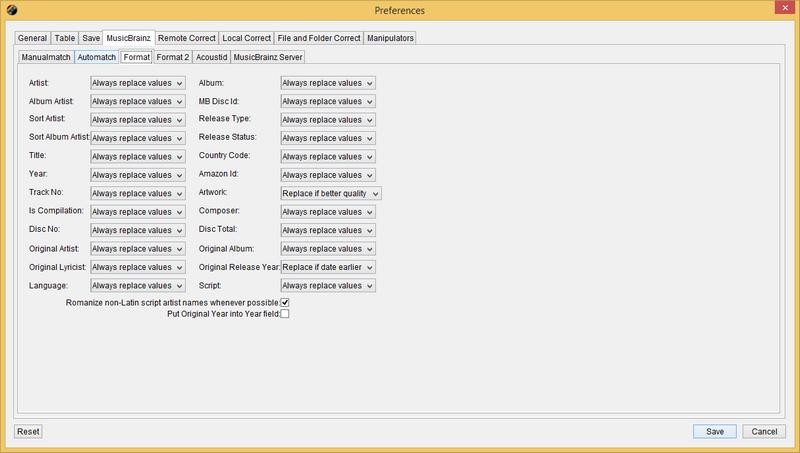
This lists most of the values that can possibly be updated by MusicBrainz upon a successful match, this includes text fields and Artwork. By default all fields are populated on a MusicBrainz match if MusicBrainz has a value, but you can select to only Replace if empty or Never Alter the field.
When matching cover art Jaikoz will attempt to finest the highest quality image it can from a variety of sources, the image is added to the audio file automatically but like all tasks the image will not be saved until you save changes.
The Romanize non-Latin script artist names whenever possible uses the Latin versions of non-latin names where possible. If the artist names is in a non-Latin script such as Chinese, Japanese or Cyrillic its Latin equivalent will be used if available. This is very useful for Western speakers who typically only can only pronounce Latin script but may have music from other cultures because then it allows them to pronounce the names of any of the artists in their collection. The Latin name is often stored as an additional alias within the original MusicBrainz database, it maybe a transliteration of the original name or an alternative Latin based name that the artists is known by in the Western world. The JThink Music Server additionally links Discogs artists to the corresponding MusicBrainz artist if it exists so that now you can often get Latin names even when your songs only match a Discogs release and not a MusicBrainz release.
This is the current list of fields that can be auto populated
- Artist
- Album Artist
- Sort Artist
- Sort Album Artist
- Title
- Year
- Track No
- Is Compilation
- Disc No
- Original Artist
- Original Lyricist
- Language
- Album
- MB Disc Id
- Release Type
- Release Status
- Release Country
- Amazon Id
- Artwork
- Composer
- Disc Total
- Original Album
- Original Release Year
- Script
The Put Original Year into Year field can be used when the original album is found so that the original year is stored in the year field. When creating play-lists in some players you may want to create date based play-lists i.e. Songs from the 60's and only some players provide access to the original release year.
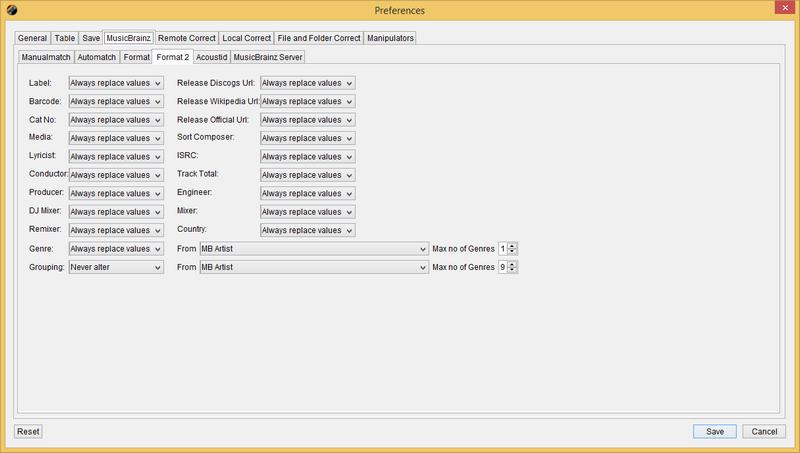
This lists additional values that can possibly be updated by MusicBrainz upon a successful match.
- Label
- Bar code
- Cat No
- Media
- Lyricist
- Conductor
- Producer
- DJ Mixer
- Remixer
- Genre
- Grouping
- Release Discogs Url
- Release Wikipedia Url
- Release Official Url
- Sort Composer
- ISRC
- Track Total
- Engineer
- Mixer
You can specify options for genres, because most players only understand the first genre linked to a song some customers put a list of genres in the grouping field as a single field to make it easier to create multiple genre based play-lists. So with Jaikoz you can also specify whether to write genres to the grouping field as well, independently of the values added to the genre field.
These preferences apply to both matching from MusicBrainz and matching from Discogs
Add EP and Single release types to release title is useful for distinguishing between a release and a single of the same name, it is common for a release to have the same name as a song on the album and if that song is released as a single there is nothing to differentiate between them.
Sometimes a recording artist may use a different name on some of their releases, this can me it harder to manage your collection. If you enable Use standard Artist name instead of name displayed on cover then the artist name will always be used in your songs metadata.
Sometimes a recording is given another name on a different release, to force a consistent name to be used enable Use standard song title instead of title displayed on cover
The Disc No field is very useful in multiple disc releases, for example to distinguish between the first track on disc 1 and the first track on disc 2. But not all applications provide access to this field so it can be useful to add to the release title by setting this option to Always Add Disc No Information to the release title. Multi-disc releases sometimes give an actual name to each disc and this can be added to the release title by setting the option to Add Disc No to the release title if disc has title.Or you can elect to do nothing special for multi-disc release by setting the option to Never add Disc No information to the release title.
This attempts to find a match in the Discogs Database, using metadata such as artist, album and title, track duration and track number. Jaikoz groups your songs by album if they have album field specified and/or by folder and first of all try to find a matching release on Discogs for all the songs in the grouping, a sophisticated algorithm analyses potential matches and selects the one that matches all songs the best and is most similar to your preferences including preferred country and media format. If no suitable match is found Jaikoz then does song by song matching based on the metadata. Jaikoz will complete as many fields as it can from Discogs if they are enabled in your Auto Format options, by default if the song has already been matched to a MusicBrainz release only empty fields will be modified by Discogs
You are limited to doing 5,000 Discogs queries within a 24 hour period by standard Jaikoz, Jaikoz does search queries to find possible matching releases and then lookups those releases so this limit doesn't necessarily match how many songs Jaikoz matches, but is usually similar. But if you have Jaikoz Pro there is no such limit.
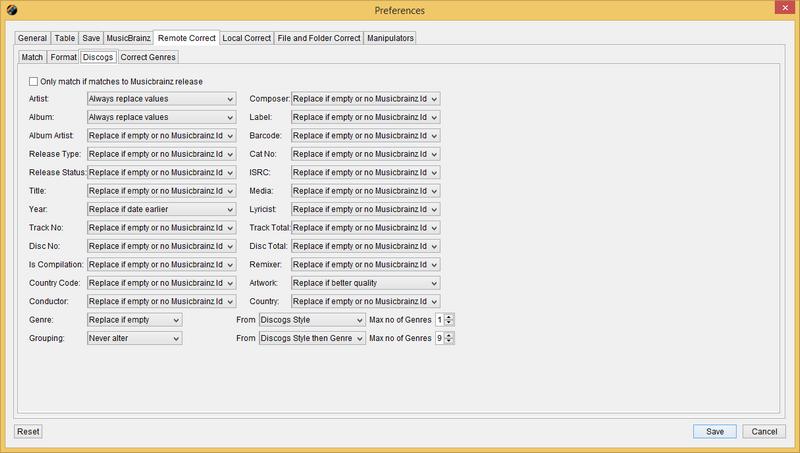
If you are an editor of MusicBrainz you may find the Only match if matches to MusicBrainz release option useful. When this is enabled Auto correct from Discogs will only try to match to Discogs if the song has a MusicBrainz Id, and will only accept the match if the Discogs metadata is a good match with the existing MusicBrainz metadata. This is a very useful way of finding links between MusicBrainz and Discogs that you can then add to the MusicBrainz release as a Discogs Relationship Type.
The Match Settings also apply to Discogs
- Artist
- Album
- Album Artist
- Release Type
- Release Status
- Title
- Year
- Track No
- Disc No
- Is Compilation
- Release Country
- Conductor
- Composer
- Label
- Bar code
- Cat No
- ISRC
- Media
- Lyricist
- Track Total
- Disc Total
- Remixer
- Artwork
Discogs categorises releases by styles and sub categories called genres. With Jaikoz you can complete the genre field using styles and/or genres, and select how many genres you want to link to any one song. Because most players only understand the first genre linked to a song some customers put a list of genres in the grouping field as a single field to make it easier to create multiple genre based play-lists. So with Jaikoz you can also specify whether to write genres to the grouping field as well, independently of the values added to the genre field.
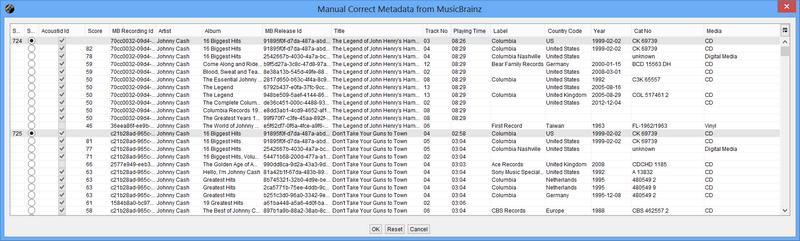
For each (selected) songs this finds up to ten potential matches in the MusicBrainz Database, a similar algorithm is used as for the Auto Correct from MusicBrainz but Manual Correct is song based instead of release based , and instead of automatically selecting the best match, up to ten matches are displayed and it is your decision to select a match or not. Matches by Acoustic Id are shown first, then matches by meta data - sorted by their rating. You can modify what fields are displayed and in what order and these changes are preserved.
If you select the pop-up menu for a song you have some further options:
This looks at the Release Id of the selected song, it then checks all the other potential matches for the other songs and selects any match that has the same Release Id. This is a nice easy way of matching a whole album of songs just by finding the best match for one song.
Displays the selected songs album details in MusicBrainz using your Web Browser
Displays the selected songs details in MusicBrainz using your Web Browser
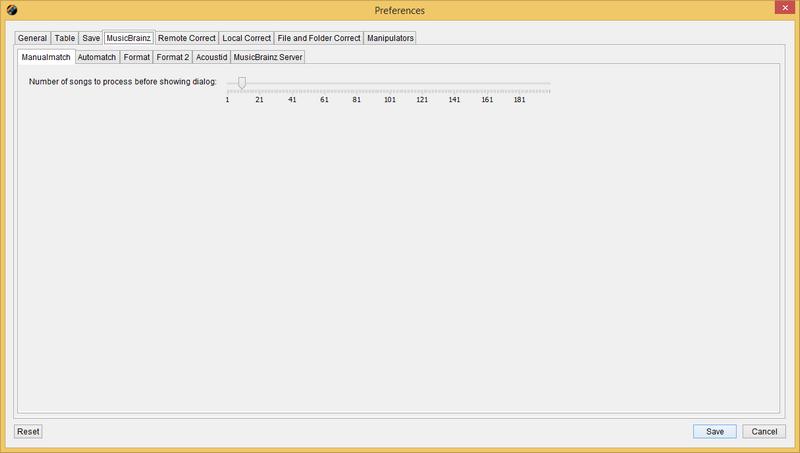
By default songs are processed in batches of ten, after the first ten songs are processed the matches are displayed in a dialog. Whilst you are reviewing the options the next batch of songs is processed in the background. If you select OK the songs are updated to your matches. This continues until there are no more songs to process, unless you select Cancel. You can select Reset to undo any changes you have made in the current batch that you are reviewing.
For each (selected) song this checks that they already have a MusicBrainz Recording Id, and if they do retrieve the latest information from MusicBrainz for this Id and updates the relevant fields in the songs if they are enabled in your Format options. Recording can be standalone but in most cases can be found on at least one album and if so Jaikoz will also have matched the recording to a MB Release Id, and Jaikoz uses this to update all the release information for the song. If the track does not have a MusicBrainz Recording Id but it does have a MusicBrainz Release Id then Jaikoz tries to find the correct track on the release by comparing the track-name, track number and track duration. If MusicBrainz contains a link to a Discogs Release Id the songs will also be updated with any more information available from Discogs.
This has a number of uses:
-
Ensuring that you have the latest information from MusicBrainz because MusicBrainz may have improved/corrected/increased the information held for this track since you originally matched it.
-
Jaikoz may not have been able to find a MusicBrainz Match itself, so you can find the correct track using the MusicBrainz Website yourself and then enter the id into the Unique Id field, then use this task to update all the fields based on this Id.
-
Even easier, just find the Release Id and then paste the MusicBrainz Release Id for every track into the Release Id field
For each (selected) song this checks that they already have a Release Discogs Url, and if they do then Jaikoz retrieves the latest information from Discogs for this Release Id and tries to find the correct track on the release by comparing the track-name, track number and track duration of the tracks with the Discogs release information. Jaikoz then updates the relevant fields in the record if they are enabled in your Format options. The Release Discogs Url can be added after a successful MusicBrainz lookup but if you're song does not have one you can search on Discogs for it yourself and add it manually.
Whether or not you have already tagged your track from MusicBrainz, Discogs may contain additional information that is not included in the MusicBrainz Database. You can also use this to help identify information that you can be added into MusicBrainz. Discogs Cover Art is generally higher quality than is available from MusicBrainz.
You are limited to doing 5,000 Discogs queries within a 24 hour period by standard Jaikoz, Jaikoz does search queries to find possible matching releases and then lookups those releases so this limit doesn't necessarily match how many songs Jaikoz matches, but is usually similar. But if you have Jaikoz Pro there is no such limit.
Tries to match all the selected songs to one MusicBrainz Release. This is very useful if your songs are listed as being from various albums but you know they all belong on a single album. Jaikoz will only allow the match if it has been possible to match all songs to another song on the release, and track lengths are approximately the same.
Tries to match all the selected songs to specified MusicBrainz Release. This is very useful if you have already found the MusicBrainz release you want the songs to be linked to. You can also search for a release here, selecting the Search button opens up Advanced Release Search. From here you can do advanced release search, this works the same way as doing an advanced release search on the MusicBrainz website, once you select a good match this is used for matching your songs. It is also useful to force a match to a release that is not allowed by Match Songs to one MusicBrainz Release because Jaikoz will warn you if there are anomalies but allow you to ignore warnings and match anyway.
Tries to match all the selected songs to specified MusicBrainz album matching on bar code, this is useful if you have been digitising an album and have the physical record available, saves you doing a MusicBrainz search. If there are multiple albums with the same barcode Jaikoz will score them and select the one with the best score.
Tries to match all the selected songs to specified MusicBrainz album matching on catalogue no, this is useful if you have been digitising an album and have the physical record available, saves you doing a MusicBrainz search. If there are multiple albums with the same catalogue no Jaikoz will score them and select the one with the best score.
Tries to match all the selected songs to one Discogs Release. This is very useful if your songs are listed as being from various albums but you know they all belong on a single album
Tries to match all the selected songs to specified Discogs Release. This is very useful if you have already found the Discogs release you want the songs to be linked to. If your songs are not close matches to the selected release in duration Jaikoz warns you and gives you the chance to match to the release anyway.
Tries to match all the selected songs to specified Discogs album matching on bar code, this is useful if you have been digitising an album and have the physical record available, saves you doing a Discogs search. If there are multiple albums with the same barcode Jaikoz will score them and select the one with the best score.
Tries to match all the selected songs to specified Discogs album matching on catalogue no, this is useful if you have been digitising an album and have the physical record available, saves you doing a Discogs search. If there are multiple albums with the same catalogue no Jaikoz will score them and select the one with the best score.
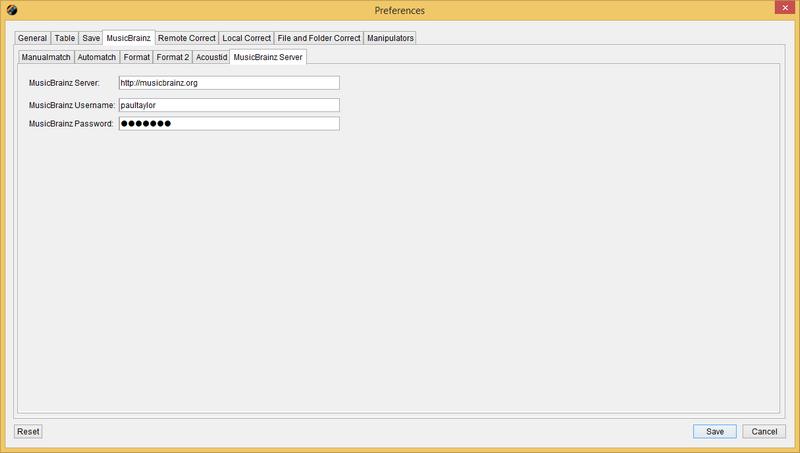
The MusicBrainz Server field specifies what MusicBrainz server to use for lookups, this is usually http://www,musicbrainz.org, but you may want to access the beta server or setup a local server you can configure Jaikoz to use it here.
In order to submit data to MusicBrainz you need to have a user account, these are completely free and can be created at the MusicBrainz Website. If you have a user account specify your username and password in this tab in the MusicBrainz Username and MusicBrainz password fields. By submitting data to MusicBrainz you are helping to improve this open source database and maintain the most accurate music resource in existence. By submitting information for songs that you own you create an archive of information that will never be lost even if your own files get damaged. Currently the majority of information that is contributed to MusicBrainz is via their website, but you can contribute some information automatically via Jaikoz. if you do this please ensure the information you submit is accurate and of a high quality.
If you successfully create an Acoustid fingerprint for a track and you have independently found a match on MusicBrainz you can submit the pairing to the Acoustid database, so should use this task AFTER matching your songs. This helps build the Acoustid Database and means that subsequent users will be able to match to the correct MusicBrainz Id if their song has the same fingerprint even if they have no metadata. All displayed/selected pairing will be submitted.
MusicBrainz has a Folksonomy cloud that can be used to tag artists, releases and tracks with anything you like. Jaikoz uses this to add genres at releases and track level. Because genres are subjective this feature is going to become more useful as more people submit their genres, so please give it a go. Jaikoz also uses the folksonomy cloud to fix the genre field when correcting songs from MusicBrainz.
If you successfully matched a track to MusicBrainz and you have independently found the bar code for the release you can submit the pairing to the MusicBrainz database, this helps build the MusicBrainz Database. For example you may have matched a release to MusicBrainz but MusicBrainz does not contain the Bar code, however if you have the original release you can read it from the cover add it to the Bar code fields for the songs and then submit to MusicBrainz with this task.
You can rate your songs in MusicBrainz and then submit the ratings to MusicBrainz, this helps others identify the best songs for an artist they may not know so well.
You can submit a new release to MusicBrainz, either ensure a single album is listed or use the context menu to submit a new release to MusicBrainz. Your release details will be opened in your browser with most of the information completed making it much quicker than adding the release manually.
MusicBrainz can store a list of the release you own and inform you of new releases by your favourite artists. Submitting releases can be done via the website but Submit MusicBrainz Collection provides an easier way to submit all the releases loaded in Jaikoz in one go. You can have multiple MusicBrainz collections and Jaikoz allows you to submit your songs to your chosen collection.