Table of Contents
- 1. Metadata Fields
-
- 1.1. Jaikoz Fields
- 1.2. File Location Fields
- 1.3. Metadata Fields
-
- 1.3.1. Artist
- 1.3.2. Album
- 1.3.3. Track No
- 1.3.4. Title
- 1.3.5. Genre
- 1.3.6. Year
- 1.3.7. Comment
- 1.3.8. Album Artist
- 1.3.9. Composer
- 1.3.10. Artwork
- 1.3.11. Grouping
- 1.3.12. Disc No
- 1.3.13. BPM (beats per minute)
- 1.3.14. MusicBrainz Artist Id
- 1.3.15. MusicBrainz Release Id
- 1.3.16. MusicBrainz Release Artist Id
- 1.3.17. MusicBrainz Recording Id
- 1.3.18. MusicBrainz Disc Id
- 1.3.19. Puid
- 1.3.20. Amazon Id
- 1.3.21. Release Status
- 1.3.22. Release Type
- 1.3.23. Release Country
- 1.3.24. Lyrics
- 1.3.25. Is Compilation
- 1.3.26. Sort Artist
- 1.3.27. Sort Album Artist
- 1.3.28. Sort Album
- 1.3.29. Sort Title
- 1.3.30. Sort Composer
- 1.3.31. Encoder
- 1.3.32. ISRC
- 1.3.33. Bar code of the release
- 1.3.34. Catalog No
- 1.3.35. Label
- 1.3.36. Lyricist
- 1.3.37. Conductor of the music.
- 1.3.38. Remixer
- 1.3.39. Mood
- 1.3.40. Media
- 1.3.41. Release Official Url
- 1.3.42. Release Discogs Url
- 1.3.43. Release Wikipedia Url
- 1.3.44. Artist Official Url
- 1.3.45. Artist Discogs Url
- 1.3.46. Artist Wikipedia Url
- 1.3.47. Lyrics Url
- 1.3.48. Disc Total
- 1.3.49. Track Total
- 1.3.50. Custom1
- 1.3.51. Custom2
- 1.3.52. Custom3
- 1.3.53. Custom4
- 1.3.54. Custom5
- 1.3.55. Floating Bpm
- 1.3.56. MB Release Group Id
- 1.3.57. MB Work Id
- 1.3.58. Occasion
- 1.3.59. Original Album
- 1.3.60. Original Artist
- 1.3.61. Original Lyricist
- 1.3.62. Original Release Year
- 1.3.63. Quality
- 1.3.64. Script
- 1.3.65. Tags
- 1.3.66. Tempo
- 1.3.67. Rating
- 1.3.68. Producer
- 1.3.69. Mixer
- 1.3.70. DJ Mixer
- 1.3.71. Arranger
- 1.3.72. Engineer
- 1.3.73. Language
- 1.3.74. Acoustid Fingerprint
- 1.4. Audio Fields
- 2. ID3 Fields
-
- 2.1. ID3 Fields
-
- 2.1.1. Unique File Identifier
- 2.1.2. Artist
- 2.1.3. Album
- 2.1.4. Title
- 2.1.5. Track No
- 2.1.6. Cover Art
- 2.1.7. Genre
- 2.1.8. Year
- 2.1.9. Comment
- 2.1.10. User Defined URL
- 2.1.11. User Defined Text Information
- 2.1.12. Composer
- 2.1.13. Copyright Info
- 2.1.14. Encode By
- 2.1.15. Original Artist
- 2.1.16. BPM (beats per minute)
- 2.1.17. Encoding Time
- 2.1.18. Playlist Delay
- 2.1.19. Original Release Time
- 2.1.20. Release time
- 2.1.21. Tagging Time
- 2.1.22. Lyricist
- 2.1.23. File Type
- 2.1.24. Involved People List
- 2.1.25. Grouping
- 2.1.26. Title/Songname/Content Description
- 2.1.27. Initial Key
- 2.1.28. Language(s)
- 2.1.29. Length
- 2.1.30. Musician Credits List
- 2.1.31. Media Type
- 2.1.32. Mood
- 2.1.33. Original Album
- 2.1.34. Original Filename
- 2.1.35. Original Lyricist(s)
- 2.1.36. File Owner/Licensee
- 2.1.37. Album Artist (Accompaniment)
- 2.1.38. Conductor/Performer refinement
- 2.1.39. Remixed
- 2.1.40. Disc No (Part of a Set)
- 2.1.41. Produced Notice
- 2.1.42. Publisher
- 2.1.43. Internet Radio Station Name
- 2.1.44. Internet Radio Station Owner
- 2.1.45. Sort Album
- 2.1.46. Sort Artist
- 2.1.47. Sort Title
- 2.1.48. ISRC
- 2.1.49. Encoding Preferences
- 2.1.50. Set Subtitle
- 2.1.51. URL: Commercial Information
- 2.1.52. URL: Copyright/Legal Information
- 2.1.53. URL: Official Song Web Page
- 2.1.54. URL: Official Artist Web Page
- 2.1.55. URL: Official Audio Source Web Page
- 2.1.56. URL: Official Internet Radio Web Page
- 2.1.57. URL: Payment
- 2.1.58. URL: Publishers Official Web Page
- 2.1.59. Play Counter
- 2.2. ID3 Extended Fields
- 2.3. Tag Field Groups
- 2.4. Data Formats common to multiple Fields
- 2.5. ID3 Tag Compatibility
- 3. Ogg Vorbis Fields
- 4. Mp4 Fields
- 5. Flac Fields
These represent the Audio Information
These fields are not part of the tags themselves but provide important information about the Tags
Each record is allocated a row number numbered in the order the songs were loaded,this cannot be modified by you. The Row Menu Pop-up can be started by clicking on the row number. If you mark songs for deletion and then save changes the successfully deleted songs will disappear from Jaikoz and the songs will be renumbered
This represents the tag status, you cannot edit this field yourself.
-
C Tag has been changed
-
D Tag has been marked for deletion
-
Tag is unchanged
Describes the tag versions in the file.
When you first load new files into Jaikoz it will check your Save Options. If your save options mean you want to save different tags then currently exist in the file, the version field and record status will be set to Changed. When editing this is a Selectable Combo .When saving the file it will create tag(s) of these version(s)
Warning if you edit fields which are not supported by the underlying version they will not be saved. For example if you add an Attached Picture and then select to only save a V1 Tag it will not be saved because ID3v1 does not support attached pictures.
Be careful when modifying these files, if your files are already in a Music Library such as iTunes, because it may prevent iTunes from finding them. It is recommended that you run Jaikoz on your files before you add them to iTunes.
In the Read Panel this is the root of where you loaded the files from. When you first start Save Folder Preferences/Read Folder is used as the default location to read songs from, you can shift folders from the Base Folder to the Sub Folder with the Shift Base Folder to Sub Folder action. In the Edit Panel this is the root of where you will save your files to, upon loading the file it will always start the same as for the read panel but you can modify it to an existing folder location here AutoFix will check the folder exists
In the Read Panel this will indicate the sub folder the file is within if when loading you specified includesubdirs.
In the Edit Panel this will indicate the sub folder to write the file to, upon loading the file it will always start the same as for the read panel but you can manually enter any valid sub folder name for your operating system here. AutoFix will check the sub folder is a valid name for the operating system.
This is automatically populated by the Correct Sub Folder from Metadata action, this uses output mask specified in Rename Sub Folder Preferences, you can shift folders from the Sub Folder to the Base Folder with the Shift Sub Folder to Base Folder action
In the Read Panel this is the name of the Audio File
In the Edit Panel this is the new name of the Audio File, upon loading the file it will always start the same as for the read panel, but you can manually enter any valid filename name for the operating system here. AutoFix will check the name is a valid name for the operating system, has a valid extension and does not have the same name as another loaded file.
This is automatically modified by the Correct Filenames from Metadata action, you can specify an output mask for the filename in Rename File Preferences
These are the fields that can be directly view and edited within the View and Edit Panels, and the Detail Panel. These fields should be supported by most Audio Formats.
The album that this recording belongs. More accurately refers to the release that the tracks belongs, for example it may be a single or an E.P rather than an album
This the track number of the recording on the album.
In the Edit Panel you can enter the track number, there are four accepted formats
-
Zeroed Track Number -
Are of the form 01,02,03-11,12.. this has the advantage the track number will be sorted correctly. If the Track Number is used to generate the filename this will also be sorted correctly
-
Non-zeroed Track Number
Are of the form 1,2,3,..11,12 these may not be sorted properly for example 12 would come before 2
-
Zeroed Track Number/Total
Are of the form 01/10,02/10.... where the Total is the total number of tracks on the recording that this is part of.
-
Non-zeroed Track Number/Total
Are of the form 1/10,2/10.... where the Total is the total number of tracks on the recording that this is part of
This is automatically populated by the Correct Track Nos Action, using options specified in Track No Preferences
Displays the first genre this Audio File belongs to
In the Edit Panel editing the field will bring up an Editable Combo you can select one from the predefined list or enter your own. Genre support multiple values opening the Pop-up Window allow you to enter additional genres.

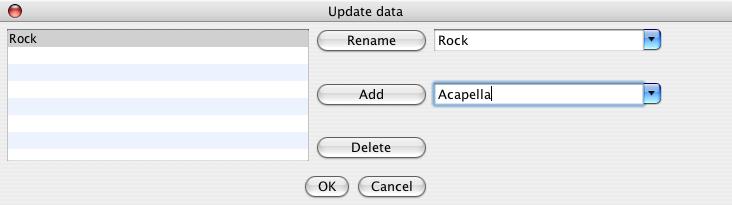
This is automatically populated by the Correct Genres Action using options specified in Genre Preferences.
Displays the Year, actually this displays the Recording Time that can be a full date and time, but most players expect it to be just a year. The Valid formats are here
You can Auto Correct the Recording Time with the Correct Recording Times using options specified in Recording Time Preferences.
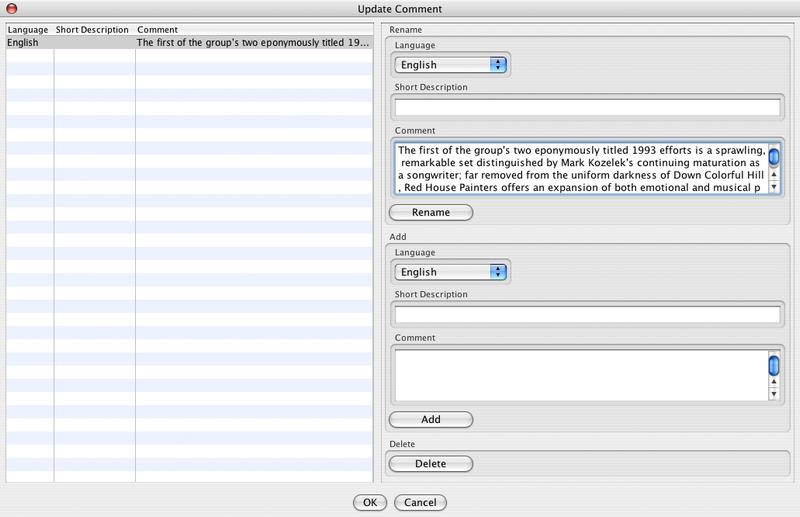
Displays a comment description. Comment is a multi value field with multiple attributes but Description is the one you are most interested.
In the Edit Panel you can edit the comment description of the first comment . A comment comprises the language it is written in,a short description of the comment, and the comment itself. Selecting Multi Field Count allows you to edit these other attribute or add extra comments
The Artist for the album, this is most useful in Various Artist compilations. This field was originally defined by ID3 as the Accompaniment but is rarely used for this purpose.
Images can be attached to a recording such as album art. This is a multi value field with multiple attributes, a thumbnail of the first image is displayed in the View Panel
From the Edit Panel you can select Multi Field Count to add new images
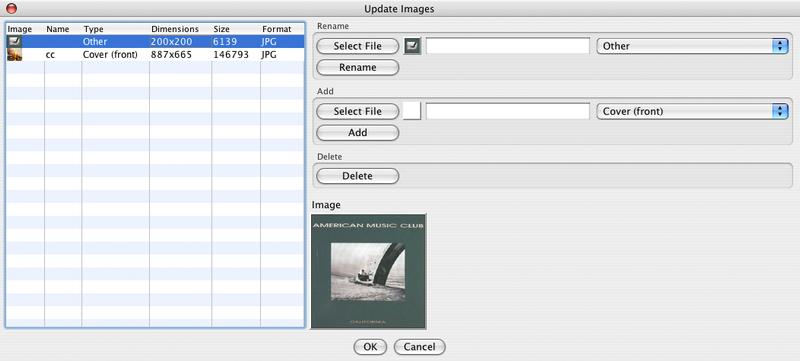
An image consists of
-
The Image itself, you can add an image with the Select File button. You should take care to add images of a suitable type and size, only images in JPG format should be added for maximum portability and you should scale the image so that its file size is not too large
-
A name, this is a text field where you can give the image a name
-
A type, this is a Selectable Combo where you select a type from a predefined list
The list on the lefthandside shows all images attached to this audio file. It shows additional attributes than cannot be modified.
-
The dimensions of the image in pixels
-
The size of the picture in bytes
Sometimes you may load an Audio File which contains an Image field but no actual picture because the tagging information was incorrectly created with another application. You can still edit this field with Jaikoz but will not see a preview until you add a new valid image.
If may contain an image field with a picture in a format not supported by Jaikoz, in this case no preview will be displayed but you can still edit the other attributes of the image.
The supported Image Types are:
-
JPEG
-
GIF
-
PNG
Identifies that this field is a part of a set grouped with other fields with the same set number. usually applies to a disc number within a multi disc release so is more commonly known as Disc No.
The MusicBrainz Artist Id allows you to access MusicBrainz Information on the Web for the associated artist.
The MusicBrainz Release Id allows you to access MusicBrainz Information on the Web for the associated release/album.
The MusicBrainz Release Artist Id allows you to access MusicBrainz Information on the Web for the associated album artist.
In Jaikoz upon a successful MusicBrainz match the MusicBrainz Recording Id is added to this field allowing you to access MusicBrainz Information for this recording. Since MusicBrainz NGS the MB Recording Id no longer uniquely identifies a track on a release, instead it identifies a unique recording of a song, this recording may then appear on multiple albums. To uniquely identify a track on a release you need the MB Recording Id, MB Release Id, Disc no and Track No.
The MusicBrainz Disc Id relates the track to the physical recording that it was taken from such as a CD pressing
The Puid is a unique acoustic identifier for the file, as calculated by MusicIP, this service is now defunct and no longer useful it has been replaced by the better Acoustid.
Release status is a MusicBrainz category used to categorize releases statuses, the allowable values are.
| Official |
| Promotion |
| Bootleg |
| Pseudo-Release |
Release type is a MusicBrainz category used to categorize releases types, the allowable values are
| Album |
| Single |
| EP |
| Compilation |
| Soundtrack |
| Spoken word |
| Interview |
| Audiobook |
| Live |
| Remix |
| Other |
Defines that this track is part of a compilation, originally used by iTunes but now in widespread use
This defines a value which should be used instead of the artist for sorting purposes.
Defines the sort name for the album artist, this is currently only used by iTunes
This defines a value which should be used instead of the album name for sorting purposes. e.g.. an album named "A Soundtrack" might preferably be sorted as "Soundtrack".
This defines a value which should be used instead of the title for sorting purposes.
The encoder that encoded the track. For some audio formats (Ogg,Flac,Mp4) modifying this field will affect the field in the Audio tab when reloaded, because they are both displaying the same field. MP3 files do not allow modification of the field in the Audio tab, so setting this field in the ID3 tag, will not affect the field in the audio tab.
International Standard Recording Code (ISRC) for the release, defined by ISO 3901, it is an international standard code for uniquely identifying sound recordings and music video recordings. IFPI has been appointed by ISO as registration authority for this standard. The ISO technical committee 46, subcommittee 9 (TC 46/SC 9) is responsible for the standard.
Url of an official web page that describes the release. This may contain additional information that isn’t currently held in MusicBrainz.
Url of a Discogs page that describes the release. Discogs may contain additional information that isn’t currently held in MusicBrainz.
Url of a Wikipedia page that describes the release. Discogs may contain additional information that isn’t currently held in MusicBrainz.
Url of an official web page that describes the artist. This may contain additional information that isn’t currently held in MusicBrainz.
Url of a Discogs page that describes the artist. Discogs may contain additional information that isn’t currently held in MusicBrainz.
Url of a Wikipedia page that describes the artist. Wikipedia may contain additional information that isn’t currently held in MusicBrainz.
MusicBrainz Release Group Id, within MusicBrainz different versions of a release all belong to the same release group.
MusicBrainz Work Id, within MusicBrainz a piece of music is called a work, this concept is particularly important for classical music.
The album that this song originally was released on. Very useful for storing the original studio album of a track that you have on a compilation.
These are the fields displayed in the View Audio Tab, this is for your information only you cannot modify these values.
This shows the audio format. For example for MP3s this combines the MPEG Version and Layer. The version is related to the sampling rate the original file was sampled at. Most music and audio book tracks use Version 1 which can sample information at CD quality (44Mhz), whereas Version 2 and Version 2.5 can be used to sample at lower rates, typically they are used in niche applications such as sampling sound effects. For MP3 the layer will always be three, MP2 would have a value of two, and MP1 files would have a value of one.
This displays the sampling rate used to create this file,usually the higher the bit rate the better quality the encoding. If variable bit rate is used it will be shown in brackets after the average bit rate e.g. 192kbps (VBR)
The encoder that encoded the track. For some audio formats (Ogg,Flac,Mp4) this fields can be modified by editing the Encoder field in the edit tab. MP3 files do not allow modification of this field, but you can set a corresponding field in the ID3 tag.