Table of Contents
- 1. Main Menu
-
- 1.1. Jaikoz
- 1.2. File
-
- 1.2.1. Open Folder...
- 1.2.2. Add Folder...
- 1.2.3. Open Files...
- 1.2.4. Add Files...
- 1.2.5. Open Playlist...
- 1.2.6. Add Playlist...
- 1.2.7. Open Recent
- 1.2.8. Close Files
- 1.2.9. Play Song
- 1.2.10. Update License
- 1.2.11. Save Preferences
- 1.2.12. Save Changes
- 1.2.13. Save And Move...
- 1.2.14. Save And Copy...
- 1.2.15. Force Save
- 1.2.16. Revert Changes
- 1.2.17. Save Artwork to File system
- 1.3. Edit
-
- 1.3.1. Undo
- 1.3.2. Redo
- 1.3.3. Copy from View Pane
- 1.3.4. Copy from Edit Pane
- 1.3.5. Paste
- 1.3.6. Paste First Value
- 1.3.7. Paste to Start
- 1.3.8. Paste to End
- 1.3.9. Remove Whitespace
- 1.3.10. Remove Widespace
- 1.3.11. Delete
- 1.3.12. Set Value...
- 1.3.13. Find and Replace...
- 1.3.14. Capitalizer...
- 1.3.15. Swap Columns...
-
- 1.3.15.1. Swap Artist with Album
- 1.3.15.2. Swap Artist with Title
- 1.3.15.3. Swap Artist with Track No
- 1.3.15.4. Swap Artist with Comment
- 1.3.15.5. Swap Album with Title
- 1.3.15.6. Swap Album with Track No
- 1.3.15.7. Swap Album with Comment
- 1.3.15.8. Swap Title with Track No
- 1.3.15.9. Swap Track No with Comment
- 1.3.15.10. Swap Title with Comment
- 1.3.16. Empty Columns...
- 1.3.17. Swap
- 1.3.18. Prepend to Left
- 1.3.19. Prepend to Right
- 1.3.20. Renumber Track Nos
- 1.4. View
-
- 1.4.1. Show View Pane
- 1.4.2. Show Tag Browser
- 1.4.3. Show Detail Pane
- 1.4.4. Show Tool Bar
- 1.4.5. Show ID3 Tabs
- 1.4.6. View Artwork Full-size
- 1.4.7. View this Song at MusicBrainz
- 1.4.8. View this Artist at MusicBrainz
- 1.4.9. View this Album at MusicBrainz
- 1.4.10. View this Acoustic Id at MusicBrainz
- 1.4.11. View this Song at Amazon
- 1.4.12. View this Album at Discogs
- 1.4.13. View this Album at Wikipedia
- 1.4.14. View this Artist at Discogs
- 1.4.15. View this Artist at Wikipedia
- 1.5. Action
-
- 1.5.1. Auto Correct
- 1.5.2. Match To Album
-
- 1.5.2.1. Match Songs to one MusicBrainz Album
- 1.5.2.2. Match Songs to Specified MusicBrainz Album...
- 1.5.2.3. Match Songs to MusicBrainz Album by Barcode...
- 1.5.2.4. Match Songs to MusicBrainz Album by Catno...
- 1.5.2.5. Match Songs to one Discogs Album
- 1.5.2.6. Match Songs to Specified Discogs Album...
- 1.5.2.7. Match Songs to Discogs Album by Barcode...
- 1.5.2.8. Match Songs to Discogs Album by Catno...
- 1.5.3. Local Correct
- 1.5.4. File And Folder Correct
- 1.5.5. Remote Correct...
-
- 1.5.5.1. Retrieve Acoustids
- 1.5.5.2. Auto correct Metadata from MusicBrainz
- 1.5.5.3. Auto correct Metadata from Discogs
- 1.5.5.4. Submit MusicBrainz/AcoustId Pair
- 1.5.5.5. Submit MusicBrainz Genres
- 1.5.5.6. Submit Barcodes
- 1.5.5.7. Submit Ratings
- 1.5.5.8. Submit New Release
- 1.5.5.9. Add to your MusicBrainz Collection
- 1.5.5.10. Remove from your MusicBrainz Collection
- 1.5.5.11. Manual Correct Tags from MusicBrainz
- 1.5.5.12. Update Metadata from MusicBrainz
- 1.5.5.13. Update Metadata From Discogs
- 1.5.6. Delete Duplicates
- 1.5.7. Delete Files
- 1.5.8. Undelete Files
- 1.6. Filters
- 1.7. Advanced
- 1.8. Reports
- 1.9. Help
- 2. Preferences
- 3. Popup Menu
The main menu items work as follows, items in the Edit menu that works on individual fields such as Copy, Paste, Swap and Capitalizer are only applied to the currently selected fields in the Edit Panel. All other tasks are applied to those songs currently selected in the row header (the record no column on the left hand side of the Edit Panel) if any are selected, if none are selected then the task is applied to all visible songs.
Describes this version of Jaikoz, the user license agreement and acknowledges the third party products used.
Quit Jaikoz. If you have outstanding modifications to your preferences but not saved them, you will see

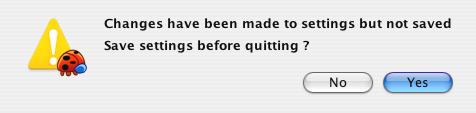
click Yes to save preferences or No to not.
It will then check if you have modified any songs. if you have you will see
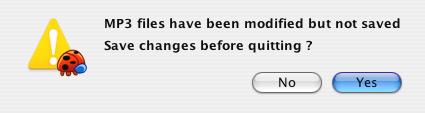
click Yes to save changes or No not to.
After making any requested saves Jaikoz will exit.
Use this to load your songs into Jaikoz, selecting the option will open a file dialog that you can use to select the folder you want to load songs from. Selecting the Include Sub Folders when searching for songs checkbox will also load any files in the sub folders of the chosen folder.
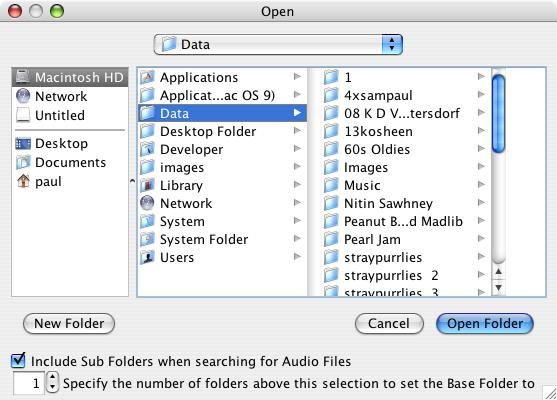
If you are attempting to load a large number of files a Progress Monitor will display showing the file loading progress, if you want to stop loading click on Cancel and no further files will be loaded. You cannot start editing until the load has completed.

Use this to load further songs into Jaikoz, without replacing currently loaded files.
Use this to load songs into Jaikoz, you can use this option to select one or more individual files from a directory without having to load all the files in the directory, any currently loaded files will be discarded.
Use this to load additional songs into Jaikoz, without replacing currently loaded files.
Use this to open all the files specified in a playlist. Currently the popular M3U format is the only playlist format supported.
Use this to open all the files specified in a playlist, without replacing currently loaded files. Currently the popular M3U format is the only playlist format supported.
Use this to reopen files/folders or play-lists that have been recently opened, maintains a history of the last ten items opened.
Use this to close songs currently opened within Jaikoz. If you have modified any of the files you will be given the chance to save your changes.
Play the selected song(s) using your default player or an alternative specified in the preferences.
This can be used to install a full license before your trial license has expired, once a full license has been installed this option is permanently disabled.
This will save any changes you have made to your preferences to file so they will be preserved the next time you start Jaikoz. By default preferences are automatically saved when you exit Jaikoz anyway unless yo have disabled this option.
This will save changes you have made to your songs, including files that are marked for deletion.
Once the save has completed, for all songs successfully saved the View Panel will be updated to show the metadata information as is currently held in the record, the Edit Panel will show the same as the Read Panel. Any songs not successfully saved will still have a status of Changed or Deleted and the songs saved metadata will be the same as before the editing was done. For more details about how save works see Saving Changes
This will save changes you songs and move them to a different folder that you select. For more details about how save works see Saving Changes
After save the moved files will no longer be open in Jaikoz
This will save changes you have made to your songs and copy them to a different folder that you select. For more details about how save works see Saving Changes
This will re-save songs, regardless of whether you have made any changes, including marking files for deletion. This can be useful if you wish to re-save a file because you want to modify the way it is saved. For example you may wish to save a file with unsynchronization either enabled or disabled.
Once the save has completed for all songs successfully saved the View Panel will be updated to show the tag information as is currently held in the record, the Edit Panel will show the same as the Read Panel. Any songs not successfully saved will still have a status of Changed or Deleted and the songs data will be the same as before the editing was done. For more details about how save works see Saving Changes
Undo any changes to fields in the song, so it is the same as when originally loaded.
If any songs contain embedded artwork the first artwork for each song will be saved as folder.jpg in the songs folder overwriting any existing folder.jpg. This is useful for some players that look for artwork on the file system instead of within the artwork itself.
This Menu provides access to basic editing functions.
Copies the selected items from the View Pane, multiple fields within a single column can be copied. This data can be pasted into another applications outside of Jaikoz if you wish.
Pastes the previously copied values (including multiple values if they have them) to the currently selected fields in the edit pane. If the copy area was larger than the selected paste area, then only the required number of fields are pasted, if the copy area was smaller than the selected paste area, we reuse the copied fields in order to populate the paste area.
Pastes the previously copied values (only pasting first value if field has multiple values) to the currently selected fields in the edit pane
Pastes the previously copied values to the start of the currently selected fields in the edit pane, (separated by a space character).
Pastes the previously copied values to the end of the currently selected fields in the edit pane, (separated by a space character).
This removes whitespace at the start or end of the currently selected fields in the edit pane.
Widespace is when there is more than one space between words, this option removes the additional spaces so that there is only one space between words in the currently selected fields in the edit pane
Set the value of the selected fields to any text that you enter into the pop-up dialog.
Change the case/capitalization of the selected fields.
Change the case to Title case. The letters for most words is capitalized except for a list of words that should not be capitalized configured in Capitalizer Preferences
Swap the data between two predefined columns. Swapping between the most popular columns are defined in this sub menu, alternatively you can use the Swap to swap data between fields in two arbitrary columns
By using the submenus you can empty all the visible fields in a particular column, you can also empty any column by selecting this option from the column header menu.
This menu is available whenever you have selected some fields in two separate columns,selecting it will swap the contents of the fields from one column with the other
This menu is available whenever you have selected some fields in two separate columns,selecting it will copy the contents of the fields in the right column into the start of the fields in the left column (separated by a space character)
This menu is available whenever you have selected some fields in two separate columns,selecting it will copy the contents of the fields in the left column into the start of the fields in the right column (separated by a space character)
This menu is available whenever you have selected some fields in the track no column,selecting it will renumbers the fields starting from the value of the first field (based on the current sort order), or starting from one if the first field has no value. The renumbering is based on the current order of the files, the numbering takes into account your Track No Preferences
This menu allows you to hide or show various components, your configuration is always automatically saved between invocations of Jaikoz without you having to save preferences.
From here you can toggle between showing/hiding the View Pane. By default the View Pane is not shown because hiding it provides a simpler interface,providing more space for editing right away. But showing the View Pane allows you to identify the ID3v1,ID3v2 and MPEG fields and identify the modifications that you have made.
From here you can toggle between showing/hiding the Tag Browser ,by default the Tag Browser is shown
From here you can toggle between showing/hiding the Console Pane. By default the Console Pane is shown, you may wish to hide the Console Pane to provide more space for editing. Everything written to the Console also gets written to the user log file regardless of whether the console is visible for the View Pane.
From here you can toggle between showing/hiding the Toolbar. By default the Toolbar is shown.
From here you can toggle between showing/hiding the ID3 tabs in the View and Edit panels. The ID3 tabs are only useful for MP3 files and are intended for users with an understanding of the ID3 format.
Available if you have songs selected with a MB Unique Id see View this Track at MusicBrainz
Available if you have songs selected with a MB Artist Id see View this Artist at MusicBrainz
Available if you have songs selected with a MB Release Id see View this Album at MusicBrainz
Available if you have songs selected with an Acoustid see View this Acoustic Id at MusicBrainz. Some tracks may have an acoustic id that isn’t actually in the MusicBrainz database so this option may open an empty page.
Available if you have songs selected with an Amazon Id see View this Amazon Id at Amazon
Available if you have songs selected with an Release Wikipedia Url
This Menu is for performing auto correcting tasks.
Runs the AutoCorrecter over all songs performing the tasks as specified in your AutoCorrecter Preferences in the order they were specified. If the task takes a while to complete a
if you want to stop the Auto Correcter click on Cancel and it will not complete the remaining tasks
This menu is for fixing release information for just a single release.
Tries to match all the selected songs to one MusicBrainz Release. This is very useful if your songs are listed as being from various albums but you know they all belong on a single album. Jaikoz will only allow the match if it has been possible to match all songs to another song on the release, and track lengths are approximately the same.
Tries to match all the selected songs to specified MusicBrainz Release. This is very useful if you have already found the MusicBrainz release you want the songs to be linked to. You can also search for a release here, selecting the Search button opens up Advanced Release Search. From here you can do advanced release search, this works the same way as doing an advanced release search on the MusicBrainz website, once you select a good match this is used for matching your songs. It is also useful to force a match to a release that is not allowed by Match Songs to one MusicBrainz Release because Jaikoz will warn you if there are anomalies but allow you to ignore warnings and match anyway.
Tries to match all the selected songs to specified MusicBrainz Release matching on barcode, this is useful if you have been digitising an album and have the physical record available, saves you doing a MusicBrainz search.
Tries to match all the selected songs to specified MusicBrainz Release matching on catalogue no, this is useful if you have been digitising an album and have the physical record available, saves you doing a MusicBrainz search.
Tries to match all the selected songs to one Discogs Release. This is very useful if your songs are listed as being from various albums but you know they all belong on a single album
Tries to match all the selected songs to specified Discogs Release. This is very useful if you have already found the Discogs release you want the songs to be linked to. If your songs are not close matches to the selected release in duration Jaikoz warns you and gives you the chance to match to the release anyway.
Tries to match all the selected songs to specified MusicBrainz Discogs matching on barcode, this is useful if you have been digitising an album and have the physical record available, saves you doing a Discogs search.
This menu is for performing corrections that effect the Metadata but not the filename, and do not require access to the Internet. All these local corrections run very quickly.
Perform a Cross Referencing Correct on the Artist column. More information about the Artist Column can be found here
Perform a Cross Referencing Correct on the Album column. More information about the Album Column can be found here
Perform a Cross Referencing Correct on the Title column. More information about the Title Column can be found here
Perform a Cross Referencing Correct on the Genre column. More information about the Genre Column can be found here
Perform a Local Correct on the Track No column. More information about the Track No Column can be found here
Perform a Cross Referencing Correct on the Recording Time column. More information about the Year Column can be found here
Perform a Cross Referencing Correct on the Composer column. More information about the Composer Column can be found here
Perform a Local Correct on the Artwork column. More information about the Artwork Column can be found here
Modify the base folder field of the selected songs to another existing folder.
This shifts the last folder in the base folder over to become the first folder in the Sub Folder field, this is normally used in conjunction with the Correct Sub Folder From Metadata action.
This shifts the first folder in the sub folder field over to become the last folder in the Base Folder field, this is normally used in conjunction with the Correct Sub Folder From Metadata action.
Renames your sub folder from the information in your fields and the rename mask that you have provided. More information available from here
Renames your filename from the information in your fields and the rename mask that you have provided. More information available from here
Extract information from your filename into your fields, more information from here
Generate acoustids for your the songs (acoustids can be used to match your songs with songs from the MusicBrainz Database). More information is available from here
Matches your songs against the MusicBrainz Database, using the audio fingerprint and/or the song Metadata. More information is available from here
Matches your songs against the Discogs Database, using the song metadata. More information is available from here
Submit your matches to the new AcoustId Database, Jaikoz will start to use this database for matching in the future.
Submit your track and release genres to the MusicBrainz Folksonomy, more information available from Submit MusicBrainz Genres
Adds the selected songs to MusicBrainz, the MusicBrainz Release Editor is opened with all the information from your selected songs already completed, this makes it much easier and quicker to add new releases to MusicBrainz.
Submit your collection (list of releases) to MusicBrainz, more information available from Submit MusicBrainz Collection
Remove the selected releases from your MusicBrainz Collection
Matches your tracks against the MusicBrainz Database, using the audio fingerprint and/or the track Metadata, and provides a list of possible matches that you can select. More information is available from Manual Correct tags from MusicBrainz
Updates the Metadata from the MusicBrainz Database, for tracks that already have a MB Unique Id, or a MB Release Id, see Updates Tags from MusicBrainz for more details.
Updates the Metadata from the MusicBrainz Database, for tracks that already have a Discogs Release url, see Update Tags from Discogs for more details.
Delete duplicates songs based on their MusicBrainz Id and/or Acoustic Id, more details at Delete Duplicates.
Mark Files for deletion, the files will only actually be deleted if you run Save Changes.
This Menu is for filtering and highlighting songs. Filtering restricts the songs that are displayed in the Edit window, subsequent menu options are only applied to the songs still available in the edit window. Highlighting changes the colour of fields to indicate they meet a particular condition.
Menu items within this menu highlight fields in particular columns based on some predefined conditions
When enabled MB Recording Id fields that are the same as at least one other songs are highlighted in orange
When enabled Acoustid Id fields that contain an Acoustic Id that is the same as in at least one other record are highlighted in orange
When enabled Genre fields that contain a non-standard genre are highlighted in orange
Menu items within this menu filter songs to only show those that meet predefined conditions
When enabled only shows songs with non-standard genres, none standard genres are any of the genres not in the list defined in the ID3 specification.
Menu items within this menu filter songs to only show those that meet predefined conditions
When enabled only songs containing a MB Recording Id field that is the same as at least one other song are displayed. This function is very useful for finding and possibly deleting duplicate versions of the same song. This id now only identifies a unique recording, the same exact recording can be found on multiple different albums, each song would have the same MB Recording Id but a different MB Release Id. In fact to accurately identify a particular track on a particular release, the Recording Id, Release Id, Disc no and track no are required.
When enabled only songs that do not contain a MB Recording Id field are shown. This function is useful for finding tracks that have not been matched to MusicBrainz, that may need matching manually
When enabled only songs containing an Acoustid that is the same as at least one other song are displayed, filter status is also shown in the status bar. This filter is very useful for finding and possibly deleting duplicate versions of the same song.
When enabled only songs containing an Acoustid are shown. This filter is useful for listing tracks that have been matched to Acoustid.
When enabled only songs containing a MB Recording Id and Acoustid combination that is the same as at least one other songs are displayed, filter status is also shown in the status bar. This filter is very useful for finding and possibly deleting duplicate versions of the same song.
Export the songs to a spreadsheet file so the details can be archived or modified outside of Jaikoz. More details at Export
Import song information from a spreadsheet file replacing any modified values with the ones in the spreadsheet. More details at Import
Empty the database cache. The database stores the details of artists, albums and tracks that have been downloaded from MusicBrainz and songs that have previously been loaded into Jaikoz. This allows subsequent lookup to be done locally and much more quickly, but you may wish to empty the cache to ensure that Jaikoz gets any updates to MusicBrainz since the information was originally downloaded. It also speeds up the reloading of files into Jaikoz from your computer.
This will create a list of albums from the tracks that you have selected that have been successfully matched to MusicBrainz, and the list the tracks within each album that you do not appear to have, more details from here
This menu contains access to information about Jaikoz and a number of 3rd party websites that may be useful to you.